



If you’re dropshipping on Shopify, you’ve probably noticed that tiny “Powered by Shopify” line in the footer. This is something Shopify adds by default to acknowledge that the platform is powering the store. Totally fair.
Now, is it possible to remove it? Absolutely. Getting rid of it is 100% safe, fully allowed by Shopify, and absolutely easy to do in minutes. In fact, most sellers do this because they want their own brand to take center stage. All in all, a clean footer looks more professional.
In this article, we’ll show you exactly how to remove the “Powered by Shopify” mark, from common issues and fixes to what to replace the text with.
Plus, we’ll cover the importance of a customized store and how to create one with dropshipping tools. For instance, AutoDS helps Shopify sellers create a fully branded, automated store with features at every step of the customer experience.
Removing the “Powered by Shopify” text is legit, easy, and quick. It’s a simple upgrade that instantly makes your store look more professional and on-brand.
There are multiple safe, beginner-friendly methods, from theme settings to code edits and CSS—no risk, no impact on SEO.
AutoDS helps you build a real brand, not just a store. With AI-built Shopify stores, automated fulfillment, and on-brand product listings, AutoDS gives you the tools to create a polished, reliable, fully branded experience.
What Is the “Powered By Shopify” Text?

Let’s start from the beginning. When you install a Shopify theme, it comes with a small, default footer line that says “Powered by Shopify”. The platform includes this for a few simple reasons.
First, it works as subtle branding for the platform. Kind of like a digital signature saying, “Hey, this store was built by us”. Second, it’s a standard mark that comes in every theme, so you’ll see it appear automatically. And third, depending on your setup, it can also pop up on other pages, like password-protected storefronts.
This takes us to another common question: where does this line typically appear? You’ll probably find it in three places:
- Your homepage footer, right at the very bottom.
- Password-protected storefronts, such as when your shop is in preview mode or under construction.
- Mobile versions of your theme. Sometimes, these handle footer text slightly differently and may still show the line even after you remove it from desktop.
In short, it’s a small piece of text…no big deal. Removing it is not necessary if you don’t want to. But if you want a more customized, branded experience, getting rid of it across all devices is just another step of the setup process.
Methods to Remove “Powered By Shopify” (2026 Updated)
So, to recap: can you remove the “Powered By Shopify” mark? Yes. Is it quick and easy? Yes x2. Next, we’ll cover four different methods to do it based on your theme. Let’s walk through them step by step.
Method 1: Remove It From Shopify Admin (Easiest)
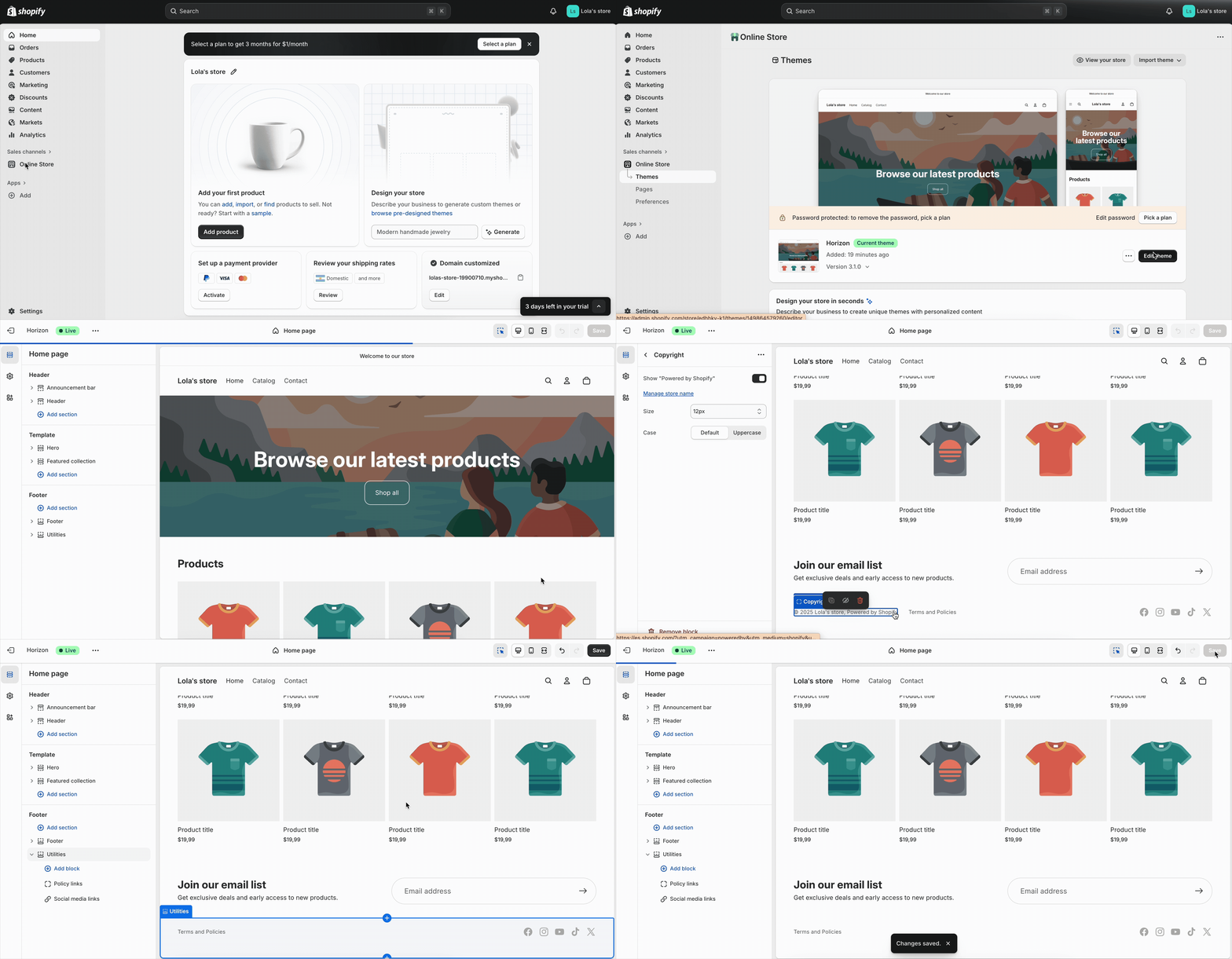
If you’re using a newer Shopify 2.0 theme, this is the cleanest, fastest, and most beginner-friendly method. Here’s how to do it with the updated 2026 version:
- Log in to your Shopify dashboard.
- Go to Online Store > Themes.
- Click Edit Theme on your current theme.
- Scroll all the way down to the footer.
- Look for a field containing the “Powered by Shopify” text.
- Delete the text completely (leaving it blank).
- Click Save.
This method works for most newer Shopify 2.0 themes, themes that expose footer text fields directly, and stores using Shopify’s default themes, like Dawn, Refresh, Taste, etc.
If your theme doesn’t display a text field for this, don’t panic. It just means you’ll use Method 2 (we’ve got you covered!).
Method 2: Remove It Through The Theme Editor Code

As was mentioned in the previous method, this one is best for themes that don’t expose the footer text field. If your footer settings don’t show the “Powered by Shopify” line, you’ll remove it by editing your theme’s code. It sounds scary, but it’s actually simple. Let’s see:
- Go to Online Store > Themes.
- Click Edit Code on your active theme.
- In the search bar, type “Footer”.
- Look for one of the following fields (they may vary by theme):
- Footer.liquid
- Footer-group.liquid
- sections/footer.liquid
- footer-group.json
- Open the file and search inside for anything like:
- {{ powered_by_link }}
- {% render ‘powered-by-shopify’ %}
- {% include ‘powered-by-shopify’ %}
- Delete the line from the file.
- Click Save.
Super easy! The only issue you may encounter has to do with theme variations. Some themes use a dedicated snippet called powered-by-shopify.liquid. In that case, you can just delete its contents. Others hide it inside a section group (like footer-group.json) or a block that must be removed manually. And mobile-specific footers may require removing the same line twice.
🆕 Beginner’s Tip: If you don’t find the exact code right away, try searching for the word “powered”. It usually brings it up instantly.
Method 3: Remove It From The Password Page

Even after removing the footer text from your main theme, the “Powered by Shopify” line may still appear on your password-protected storefront. This is because this page uses its own template, with a different setup.
Here’s how to remove it:
- Go to Online Store > Themes.
- Click Edit Code.
- Search for:
- password.liquid
- templates/password.liquid
- Open the file and search for:
- {{ powered_by_link }}
- {% include ‘powered-by-shopify’ %}
- Delete the line.
- Save your changes.
This step is essential if your store is still in “coming soon” mode. But again: removing it is not 100% essential. It’s just a matter of a fully branded experience.
Method 4: How to Remove It Using CSS (Backup Option)

Sometimes, a theme buries the “Powered by Shopify” text so deeply in its code that you simply can’t find the exact line to delete. When that happens, there’s a perfectly valid backup plan: hide it with custom CSS.
You can use this method when your theme doesn’t show a footer text field, you can’t locate the “powered_by_link” line in the code, and when the text still appears in the mobile version even after removal.
In fact, this method only works with older themes. You won’t be able to do this with 2.0 versions (like Dawn, Refresh, and Sense), templates like Horizon (which use their own blocks), and other modern third-party themes.
Here’s how to do it:
1. Go to Online Store > Themes.
2. Click Edit Theme on your current theme.
3. Open Theme Settings > Custom CSS (or “Additional CSS” depending on the theme).
4. Paste this snippet:
.site-footer__copyright .powered-by {
display: none !important;
}
5. Save your changes.
This hides the element visually without affecting anything else on your page. But, before you go straight to do this, there are a couple of best practices for CSS-based hiding you should keep in mind. Let’s see:
- Only use CSS if the other methods fail. It’s a workaround, not the primary solution.
- Keep a note of your custom CSS changes in case you switch themes later.
- Make sure no other footer elements accidentally share the same class (this is rare, but worth checking).
- Revisit after major theme updates. Sometimes the class names change.
The best part is this: hiding this element with CSS is completely fine and won’t trigger SEO penalties. Google doesn’t care if you hide this tiny branding line. It has zero impact on your ranking, it is 100% safe, clean, and fully compliant.
Removing “Powered By Shopify”: Common Problems & Fixes
Even when you follow all the steps correctly, that little footer text sometimes refuses to leave the party. Here are the most common issues store owners run into, and the quick fixes that will finally get the “Powered by Shopify” mark out of your footer for good.
Problem 1: The Text Still Appears After Removing It
Pretty common. Already deleted the text or removed the code, but it still shows up? Don’t panic. This usually comes down to one of three things:
- Cached theme preview. Shopify sometimes shows an older cached version of your footer. To solve this, just refresh your browser or view your store in a private or incognito window to see the updated version.
- Outdated or duplicated theme files. If you edited footer.liquid, but your theme actually uses footer-group.liquid or a section snippet, the change won’t apply. Try searching for the word “Powered” across all files to catch hidden references.
- Desktop vs. mobile versions. Some themes have separate mobile footers (or mobile-only blocks). You may need to remove the “Powered by Shopify” reference in both versions.
Problem 2: A Theme Update Restored It
Theme updates sometimes reintroduce the default footer text, especially if you removed it manually from the code. Here’s how to fix it:
- Reapply the same code deletion in the updated file.
- If you rely on CSS hiding, check if the class names have changed.
- To avoid redoing work every time, consider:
- Duplicating your theme before updates.
- Using a child theme (recommended for custom setups).
If your store suddenly shows “Powered by Shopify” again after an update, this is almost always why. You just have to do the same process again.
Problem 3: Multiple Footers In Custom Themes
Custom or heavily modified themes sometimes include multiple footer sections: one for desktop, one for mobile, one for password pages, and one for special templates. To fix it:
- Look for multiple footer files like “footer.liquid”, “footer-group.liquid”, or “sections/footer.liquid”.
- Use Shopify’s search bar to search for “powered”. This instantly reveals every file referencing the “powered-by” snippet.
- Remove the line from each relevant section.
If you’re working with a theme that seems to have “mysterious duplicated footers”, this method saves hours of frustration.
Why Removing “Powered By Shopify” Improves Branding
Deleting one tiny line of text might seem minor. And yes, it kind of is. But it actually does a lot for your brand. It provides a fully branded experience that elevates your Shopify store without much effort. Let’s zoom in.
First, it improves trust and professionalism. Customers are quick to judge whether a store feels legit or copy-pasted from a template. When visitors see “Powered by Shopify” in the footer, many instantly recognize it as a default setting used by brand-new stores.
Removing it signals that you’ve taken time to customize your site and that you’re a real brand, not just another basic template.
Second, it enhances brand consistency. Your store has its own personality, tone, visuals, and vibe. So why leave a generic platform credit that doesn’t match anything about your brand? Removing the line helps your store feel more premium, cohesive, and thoughtfully designed.
And last but not least, it increases conversions. Put simply, branding and conversions are best friends. A cleaner, more cohesive store reduces buyer hesitation and lets shoppers focus on your products. Here’s how removing the text helps conversions:
- Cleaner UI: fewer distractions at the bottom of the page.
- Reduced friction: customers aren’t reminded they’re buying from a template-based store.
- Added credibility: polished stores feel safer, and safety encourages shoppers to click “buy”.
Bottom line? It’s a small change with almost no effort that leads to a real psychological impact.
What To Replace the Footer Text With
Once you remove the “Powered by Shopify” line, you’re left with a perfect branding opportunity: a blank footer. This little part might be at the bottom of your store, but it’s a golden space to build credibility, clarity, and trust. So… what should you put there instead?
First, you have brand-enhancing inserts. These include assets that boost your brand recognition and make your business look more professional. For example:
- Copyright notice. A clean “© 2026 YourBrand. All Rights Reserved” instantly looks professional and protects your brand from unauthorized use, copycat stores, and general confusion about ownership.
- Company slogan. A short, memorable tagline can reinforce your identity. For example, if you’re targeting the sports niche, you can do something like: “Made for everyday hustle” or “Gear that goes further”.
- Navigation links. Footers are great for encouraging shoppers to explore your site. You can add links to your About page, Contact page, FAQs, or even social media channels.
- Policy links. Every legit store needs quick access to the privacy policy, terms of service, refund policy, and shipping policy. These boost trust and help with compliance. Plus, they’re often legally required.
- A minimalist design. Don’t want to include much? That’s not a bad idea either, depending on your goal. For instance, something clean and modern is perfect for premium brands and fashion stores.
Then, you can also opt for conversion assets. This is a little extra that reassures shoppers, reinforces trust, and subtly encourages them to complete their purchase. Here are some examples:
- Social-proof (trust boosters). This is great for new stores or niches where credibility matters. You can add something like “Loved by 50K+ customers worldwide. Free returns. Fast global shipping”. And boom, there you have it: instant legitimacy placed right into your footer.
- Compliance proof (policy-forward). This is ideal for stores in regulated niches or international markets. For example: “Privacy Policy | Terms & Conditions | Cookie Settings” in a simple, clear, minimalistic way.
- A clear, compelling CTA. Something like “Join our newsletter” or “Shop new arrivals” can give visitors a final push and guide them toward their next action instead of letting them drift away.

The important thing is this: your footer isn’t just a leftover space. It’s a branded final impression. Make it count and use it wisely based on your own goals.
💡 Pro Tip: Want to actually assess how much your online visitors engage with your footer? You can use tools like Hotjar or Microsoft Clarity to see where people scroll, click, and drop off. This will give you enough data to see how relevant the footer is for your niche and how you can enhance it.
How AutoDS Helps You Build a Fully Branded Shopify Store
If you wanted to remove the “Powered by Shopify” line, it is because you are looking to make your Shopify store more branded, professional, and polished. If that’s your case, that’s just the first step.
The real magic happens when every part of the shopping experience feels fully branded, from the products you source to fulfilment. And that’s exactly where AutoDS steps in.
AutoDS, an all-in-one dropshipping platform, gives Shopify sellers the full toolkit to build a business that looks original, runs smoothly, and provides a transparent, clean experience from start to finish.
AI-Built Shopify Stores

If you think building a professional, polished Shopify store is a full-time job, we have good news: it’s not! AutoDS’s AI-built Shopify Store lets you build your entire store in two minutes. It includes everything from branding and product pages to layout, homepage, and collections.
In minutes, you get:
- A professional, on-brand Shopify store.
- Custom visuals, colors, and messaging.
- Pre-optimized product pages.
- A clean structure that’s ready to convert.
- Zero manual theme editing required.
It doesn’t just build an entire site for you without coding or design skills. It does it in minutes, literally. This means you can get your store up and running right away, fully branded and optimized. No wasted time, no theme headaches.
“These pre-built stores are being managed by AutoDS, so whichever niche you pick, AutoDS is going to include the bestselling products from that niche”, says Anthony Eclipse, e-commerce Coach & Founder of Ecom Mafia 👉 Get your free AI-built store now for just $1!
AI Product Title & Description Generator
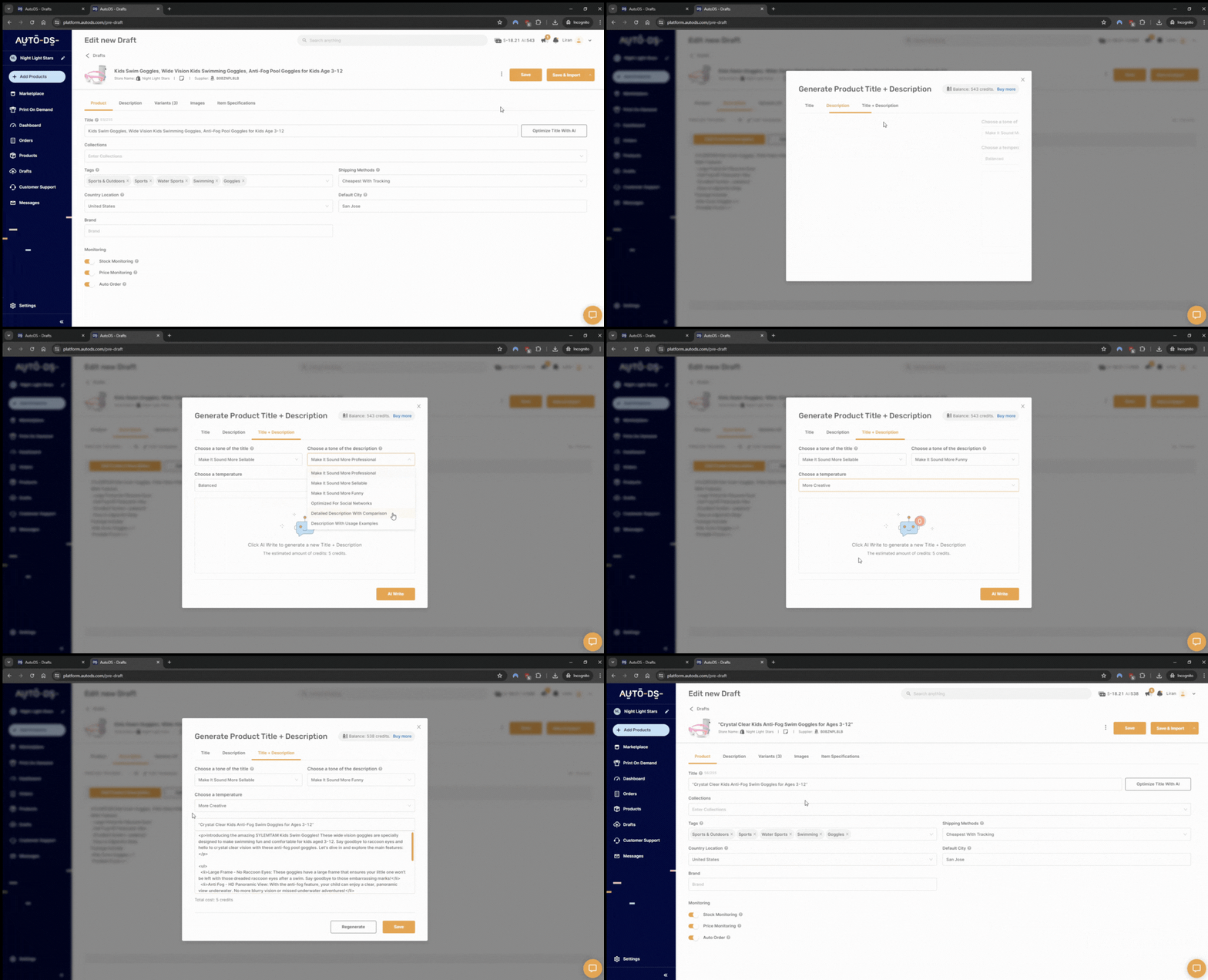
Branding isn’t just about colors and logos. It’s also about how your store sounds. AutoDS’s AI Product title & description generator helps you stay consistent by generating product titles and descriptions that match your tone, niche, and personality.
Instead of relying on suppliers’ copies (which are usually… let’s say uninspired), AutoDS rewrites everything in a clean, human, SEO-friendly language tailored to your brand, all with AI.
With this feature, you can create catchy, on-brand product copies instantly, maintain the same voice and tone across your entire catalog, and save hours of manual writing and editing.
Full Automation At Every Step Of The Customer Journey
Again, branding is not just about how your store looks. It’s also about how your entire business feels.
You can have the most beautiful store, the best design, and the best copies in your listings. But if you don’t deliver as promised, your products are of bad quality, and your suppliers cancel your customers’ orders at the last minute, then the entire brand experience collapses. And no amount of pretty fonts can save you.
AutoDS automates the entire customer journey, so your store feels reliable from the moment someone scrolls through your site to when they receive their order. Here’s what gets automated for you:
- Price and stock monitoring. If your supplier changes anything, AutoDS updates your listings instantly so you never oversell or lose profits.
- Auto-ordering and fulfillment. Orders get processed automatically, reducing delays and keeping customers happy. Moreover, the system centralizes all your orders in one single place, where you get to see the current status, tracking updates, and more. This allows you to have a clear picture of what’s happening and make sure every order is on time.

- Tracking number updates. AutoDS sends tracking info directly to your customers, creating a transparent post-purchase experience.
- 25+ global suppliers. AutoDS connects to some of the best, most reliable retailers, like Walmart, Target, Home Depot, and Amazon. This guarantees you deliver good quality products. But, mostly, it allows the system to reroute orders instantly if a supplier runs out of stock, so your customer never feels the chaos happening behind the scenes.
The result? A store that feels like it has a full operations team behind it. Automation keeps everything consistent, reduces errors, and delivers a smooth experience for your customers at every step of the journey.
Frequently Asked Questions
Is it allowed to remove “Powered by Shopify”?
Yes, Shopify fully allows sellers to remove or customize the footer credit, which includes removing the “Powered by Shopify” line. This doesn’t violate any policy and won’t affect your ability to use the platform.
Why does Shopify add “Powered by Shopify” by default?
Shopify adds the “Powered by Shopify” line by default simply for branding purposes. Most themes include it automatically in the footer and on password pages. That said, it’s not a requirement. You can delete it any time.
How do I remove “Powered by Shopify” in Shopify 2.0 themes?
To remove the “Powered by Shopify” in Shopify 2.0 themes, go to Online Store > Themes > Customize > Theme Settings > Footer. Then, find the “Powered by Shopify” field, delete the text, and save. Many modern themes support this one-click removal.
How do I remove the text from the password page?
Removing the “Powered by Shopify” from the password page is a bit different than in your main theme. This is because Shopify uses a different template for the password and coming-soon pages. To remove it, go to Edit Code > password.liquid, search for powered_by_link or the powered-by snippet, and delete it.
I can’t find the footer.liquid file — what do I do?
If you can’t find the footer.liquid file, no worries. Different themes store the footer in different files. You can search for: footer-group.liquid, sections/footer.liquid, or simply use the search bar and type “powered”. That usually reveals the correct file instantly.
How do I remove “Powered by Shopify” without editing code?
To remove the “Powered by Shopify” without editing code, you can just delete the text from the footer settings in the Theme Editor, as long as your theme supports it. If not, you can hide it safely using CSS.
Will removing the footer affect my store’s SEO or performance?
No, removing or hiding the “Powered by Shopify” line on the footer has zero SEO impact and doesn’t affect site speed or performance. Google doesn’t care whether that line is there.
Why does the “Powered by Shopify” text come back after updates?
The “Powered by Shopify” line may come back after updates simply because theme updates often restore default template files, including the footer credit. After updating, simply remove it again. You can also use a duplicated theme to avoid overwriting your changes.
Can I hide the text using CSS instead?
Yes, you can hide the text using CSS if you can’t locate the exact code reference or your theme handles the footer differently on mobile. It’s completely safe to do so.
What should I replace the footer text with for branding?
You can replace the “Powered by Shopify” text in the footer with many options. For example, a copyright notice, a short brand slogan, navigation or policy links, and social-proof statements.
Start Your Dropshipping Journey with AutoDS
Now you know: removing the “Powered by Shopify” text is possible, easy, and quick. You just have to know your way around it. Once you do, it can enhance your branding, make your store look more professional, and even increase conversions.
But a solid branding strategy doesn’t stop there. Having a professional and transparent business is more than just a logo or a watermark on a footer. It’s about offering a seamless experience, end-to-end. AutoDS steps in with full automation at every stage of the dropshipping process.
It includes AI-built Shopify stores, reliable suppliers, automated fulfillment, and AI-powered listing optimization to make sure everything runs smoothly from the moment a customer sees your listing to the moment it arrives.
Branding + automation = a store that actually grows. With AutoDS, you get everything you need to enhance your branding experience 👉 Start your $1 trial today!
Want to keep learning about dropshipping branding? Here are a few more reads: