


Shipping gets tricky in Shopify dropshipping for one simple reason: you’re setting the rules your customer sees, but someone else is actually sending the package. Rates, delivery zones, supplier costs, and estimated arrival times all have to line up well enough that checkout feels clear without quietly eating into your margin.
Shopify gives you several ways to handle that, from free and flat-rate shipping to more tailored rates and shipping profiles. The right setup depends on what your suppliers charge, where you plan to sell, and how much of that cost you want to absorb or pass on to the customer.
In this guide, I’ll walk through how to set up shipping on Shopify for dropshipping from the ground up: which methods you can use, what to check before touching the settings, how to configure rates and zones, and where automation can take over once orders start coming in.
Shipping setup for Shopify dropshipping begins with supplier data: costs, processing time, delivery estimates, supported destinations, and fulfillment locations.
The right Shopify rate depends on the order economics, from free and flat shipping to weight-, price-, or product-based rules.
Zones and profiles keep different destinations, suppliers, and product groups from being forced into one shipping setup.
Free shipping changes who pays the cost, not whether the cost exists, so thresholds and pricing need to protect margins.
Clear delivery expectations combine fulfillment time, transit time, and a transparent shipping policy.
AutoDS reduces manual work by incorporating supplier shipping into pricing and syncing eligible orders and tracking.
Shopify Shipping Methods For Dropshipping
Before touching Shopify’s shipping settings, there’s one decision to make first: how should the shipping cost show up at checkout? Shopify currently frames its core shipping strategies for dropshipping around five approaches:
| Method | How it works | Best for | Watch out for |
|---|---|---|---|
| Free Shipping | The customer pays $0 separately; shipping is absorbed or built into the product price | Simple offers and stores that want one clear upfront price | The supplier shipping cost still has to be covered somewhere |
| Single Flat Shipping Rate | One fixed shipping fee applies to eligible orders | Predictable supplier costs and simpler catalogs | One rate can overcharge cheaper orders or undercharge expensive ones |
| Tiered Flat Rates | Shipping changes according to order price or weight | Mixed carts, larger orders, and free-shipping thresholds | Poorly chosen tiers can leave part of the cost uncovered |
| Per-Item Shipping Rates | Different products carry their own shipping rates, which may combine at checkout | Products or suppliers with very different shipping costs | Multi-product carts can produce higher or more complicated totals |
| Advanced Shipping Rates | Several rules, locations, services, or calculated rates work together | Multiple suppliers, destinations, or standard/express options | More flexibility also means more setup, testing, and maintenance |
To make those differences easier to follow, I’ll run the same $40 product through all five methods below.
- Product cost: $20
- Supplier standard shipping: $6
- Supplier express shipping: $10
- Selling price: $40
That gives us the same starting point every time and makes it easier to see who absorbs the shipping cost, what the customer pays, and how much margin is left before the rest of the business expenses arrive.
Free Shipping
With free shipping, no separate delivery fee appears at checkout. But the supplier still charges its $6, so there are two basic ways to handle it: absorb the cost or work it into the product price.
Keep the selling price at $40, and a $20 product plus $6 supplier shipping leaves $14 before other expenses. Raise the product price to $46 instead, and the customer still sees “Free Shipping,” but that extra $6 now covers delivery and restores the same $20 left after product and shipping costs.
That’s the real calculation: the fee moves into the pricing strategy rather than disappearing.
Single Flat Shipping Rate
A single flat rate works differently because the goal is to estimate one shipping charge that can cover the supplier fees across many orders, not necessarily match every individual shipment.
Suppose a typical week looks like this:
- 10 one-product orders × $6 supplier shipping = $60
- 5 two-product orders × $8 supplier shipping = $40
- Total: $100 in shipping across 15 orders
Divide $100 by 15 and the average supplier shipping cost is about $6.67 per order. Charging a $6.67 flat rate would therefore aim to cover the forecast shipping bill as a whole, even though some individual orders cost slightly more or less to fulfill.
As real orders replace forecasts, that average can be adjusted around what the supplier is actually charging.
Tiered Flat Rates
Tiered flat rates get more specific by changing the checkout fee according to order price or weight. They make sense when supplier shipping also changes as the cart gets larger.
For example, suppose the supplier charges:
- 1 product ($40 order): $6 shipping
- 2 products ($80 order): $8 shipping
- 3 products ($120 order): $10 shipping
The Shopify rates could follow that pattern: $6 for orders under $60, $8 for $60–$99.99, and $10 for $100–$139.99. Instead of making every cart pay the same average, the shipping charge moves closer to what different order sizes actually cost.
This is also where discounts or a free-shipping threshold can be introduced once the larger cart provides enough margin to absorb the difference.
Per-Item Shipping Rates
A per-item approach becomes useful when different products carry very different supplier shipping costs, especially when those costs don’t share one clean average. Shopify can separate those products through shipping profiles and combine applicable rates when they appear together in a cart.
Keep our $40 product at a $6 shipping rate, then imagine another product from a different profile carries a $4 rate. If a customer buys both, the combined shipping charge can become $10 at checkout.
That makes the customer-facing rate more closely reflect what those products cost to fulfill. The trade-off is complexity: once carts start mixing several profiles, combined shipping can climb quickly.
Advanced Shipping Rates
Advanced shipping rates become useful when quantity isn’t the only variable. Different destinations, fulfillment locations, and delivery speeds can all change what the supplier charges.
Say our $40 product costs $6 Standard or $10 Express to ship within the US, but $9 Standard or $15 Express to Canada. Instead of forcing all four scenarios into one average rate, the store can offer shipping options that reflect the destination and service selected.
That gives the customer a meaningful choice while keeping the checkout charge much closer to the underlying fulfillment cost.
🆕 Beginner’s Tip: These examples keep the numbers manageable on purpose. Once a store spans multiple suppliers, destinations, and order sizes, the best setup usually mixes different rules rather than relying on one universal rate. For a deeper breakdown, check this Shopify dropshipping shipping rates guide.
Before You Set Up Shipping
Now that the shipping methods are clear, resist the urge to jump straight into Shopify. First, pull the supplier details into one place, because the rates you configure at checkout should reflect what fulfillment will actually cost and how long it will take.
Have these numbers and details ready:
- Supplier shipping cost per product, order, or weight (for example, $4 per item or a higher rate once the package crosses a weight threshold).
- Processing time before the supplier hands the order to the carrier (say, 1–3 business days before transit even begins).
- Estimated delivery time for each available method (such as 7–12 days for standard versus 3–5 days for express).
- Countries and regions served (a supplier may ship across the continental US but exclude Alaska, Hawaii, or certain international destinations).
- Shipping origin for each product (the same listing might leave from a US, Chinese, or European warehouse depending on stock).
With those details mapped out, rates, zones, and delivery estimates can be built around the fulfillment reality behind each order, which is exactly what we’ll configure next.
How To Set Up Shipping On Shopify For Dropshipping
Now that the numbers are clear, it’s time to put them into Shopify. The process comes down to four steps:
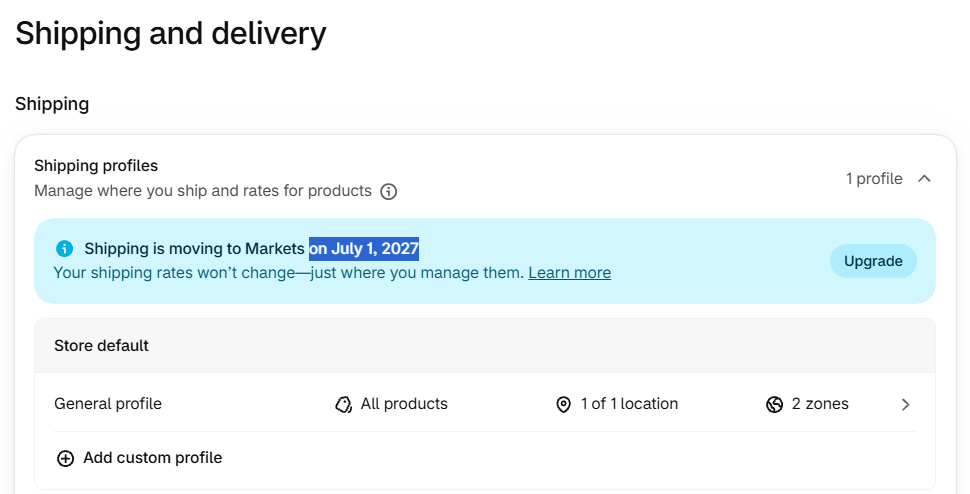
🔄 Shopify update: Shipping profiles and rates will move to Markets on July 1, 2027. Until then, existing stores can keep their current setup, and Shopify will migrate existing rates automatically when the upgrade takes place.
1. Configure Shipping Zone
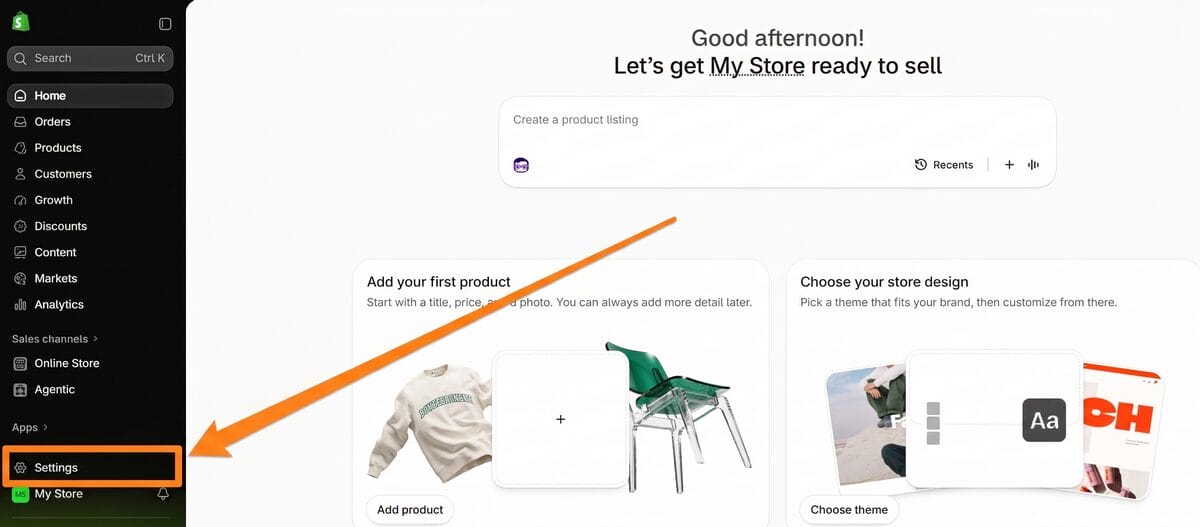
Start in your Shopify admin and click Settings in the lower-left corner. From there, open Shipping and delivery.
Under Shipping profiles, select General profile if most of the catalog can follow the same shipping rules. Products that need a different setup (because they come from another supplier, warehouse, or fulfillment route) can later be separated into a custom profile.
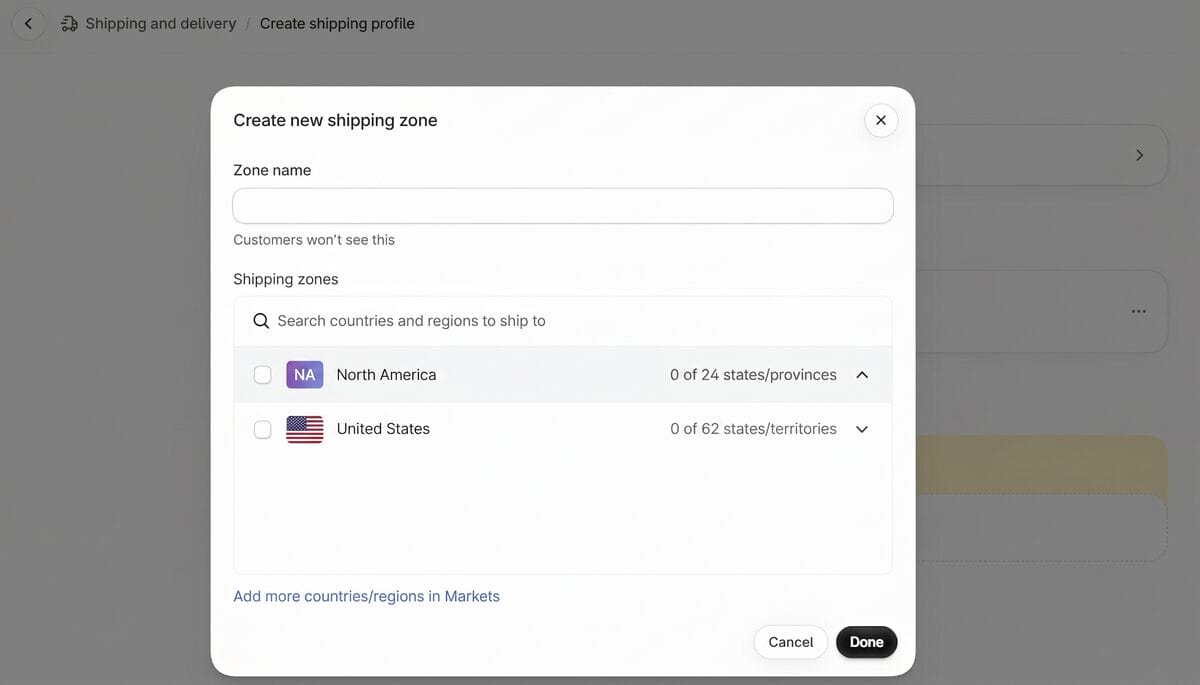
Inside the profile, scroll to Shipping zones and click + Zone. Give the zone a clear internal name (such as Domestic, United States, or Europe) then select the countries or regions you want it to cover and click Done.
You’re not limited to just one zone. The same shipping profile can contain multiple ones, so the US, Europe, Canada, or any other group of destinations can each follow their own rates and delivery rules.
One important detail: a country must also belong to an active Shopify Market before customers there can check out. If the country you need isn’t available, use Add more countries/regions in Markets first, then return to the shipping zone and add it.
2. Manage Shipping Rates
With the zone in place, Shopify knows where the shipping rule should apply. Now it needs to know how the charge should work for orders going there.
Back inside the General profile, each shipping zone shows the options currently available at checkout. An existing one might be called Standard or International, or you can click Add shipping option to create a new one.
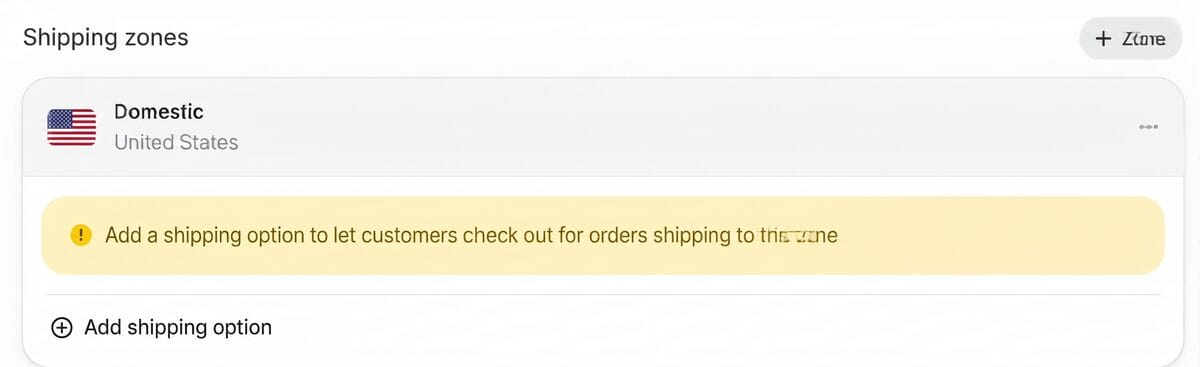
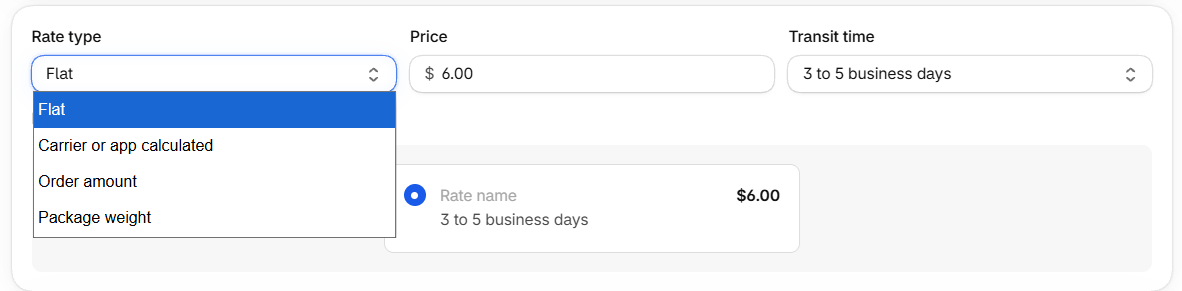
The shipping option is what customers see at checkout, while the rate type controls how Shopify calculates its price. Current options include Flat, Order amount, Weight, and Carrier or app calculated, covering everything from one fixed fee to price- or weight-based tiers and eligible live carrier rates.
Free shipping isn’t a separate rate type, either. It can be added to an eligible option, including above a minimum order value.
📣 Quick note: Connecting a third-party carrier account for live calculated rates requires Shopify Advanced or Plus. Grow can unlock the feature with annual billing or an additional monthly fee, while Basic and Starter don’t support external carrier accounts. Shopify’s built-in carrier rates may follow different eligibility rules.
3. Add Shipping Rates
Now it’s time to turn the rate type into an actual checkout option. Click Add shipping option inside the zone you just created, give it a customer-facing name (such as Standard, Economy, or Express), and choose how Shopify should calculate the charge: Flat, Carrier or app calculated, Order amount, or Package weight.
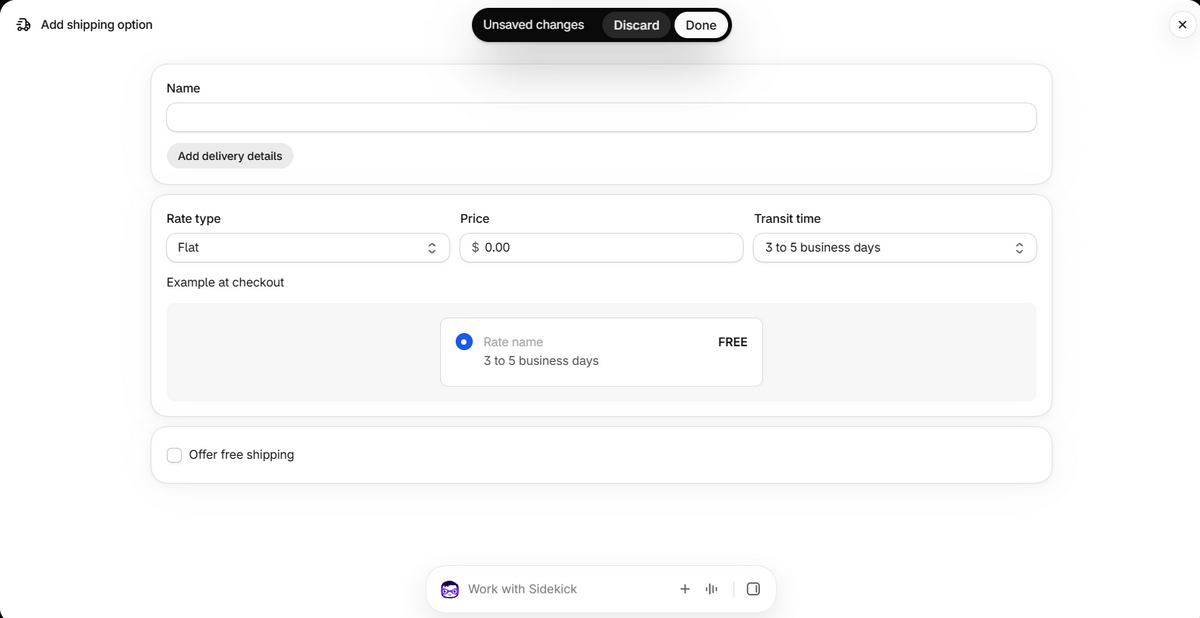
For a simple setup, select Flat and enter the amount customers should pay. You can also add delivery details and, when available, choose a suggested Transit time or set a custom range. Keep one distinction in mind: transit time begins once the carrier has the package, so the supplier’s processing time still needs to be added when setting the full delivery expectation.
Let’s bring back our running example:
- Selling price: $40
- Product cost: $20
- Supplier shipping: $6
If the goal is to pass that supplier shipping cost directly to the customer, set the rate to $6. A one-product order then totals $46 at checkout: $40 for the item plus $6 shipping. After the $20 product cost and $6 supplier fee, $20 remains before the rest of the business expenses.
But a flat charge doesn’t have to be the end of the setup. Suppose the goal is to encourage customers to add a second item. Check Offer free shipping and set the Minimum order amount to $80.
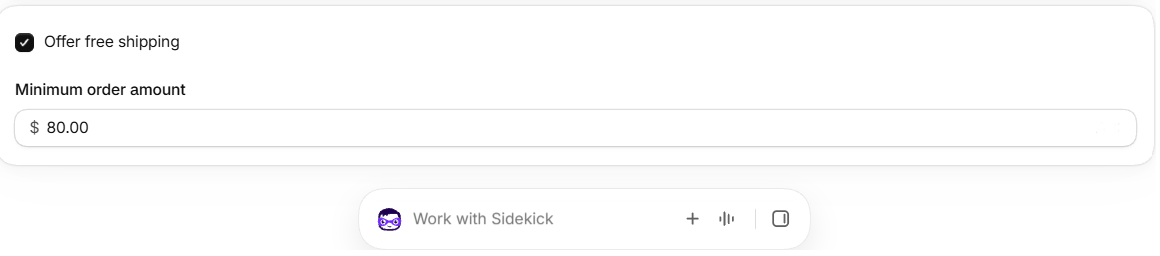
Here’s what that does to the same offer:
- 1 product: $40 order + $6 shipping = $46 customer total
- 2 products: $80 order = free shipping at checkout
- Supplier cost for 2 products: $40 in products + $12 shipping = $52
- Amount remaining: $80 − $52 = $28 before other expenses
The point of the threshold is to make the larger order absorb shipping more comfortably. Giving up the $12 charge still leaves more dollars on the order than selling one unit with paid shipping. That’s the kind of trade-off worth checking before deciding where a free-shipping threshold should sit.
4. Save Shipping Settings
Once the shipping option, rate, transit time, and any conditions look right, click Done, then Save. From that point on, Shopify can surface the option whenever the customer’s address and cart match the rules you configured.
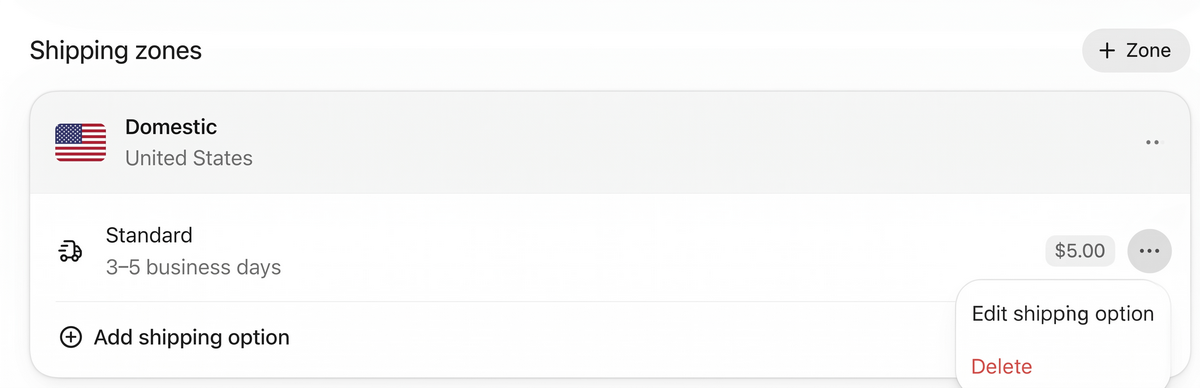
Nothing is locked in, either. If supplier costs change or a different shipping strategy makes more sense later, return to the shipping option and choose Edit shipping option to adjust the price or conditions.
But a saved rule is only useful if it behaves correctly in the storefront. Run a fresh checkout before launch: add a product covered by the rate, enter an address inside the shipping zone, and check the shipping option, price, free-shipping threshold, and delivery information exactly as a customer would see them.
When you make changes, start a new checkout for every retest. Shopify notes that abandoned checkouts can keep the shipping rates available when they were first created, which means an older session may not reflect the latest setup. For a full end-to-end check, test orders can also be placed using Shopify’s test payment options on an eligible paid store.
💡 Using carrier-calculated rates? Go to Settings → Shipping and delivery → Carrier accounts, open the connected carrier, and choose Calculate rates. Add the package details plus origin and destination addresses, then click Test rates to preview sample prices. Treat them as estimates, though: the rate shown at a real checkout can still vary.
Once the fresh checkout returns the rate, price, and delivery information you intended, the shipping setup has passed its final check.
Shipping Profiles For Different Suppliers Or Product Groups
The setup above works neatly when products share similar fulfillment costs. Dropshipping gets more complicated once different suppliers, warehouses, or product groups enter the same catalog. A locally fulfilled item that costs $4 to ship probably shouldn’t follow the same checkout rule as an overseas product with a $9 fee and a much longer delivery window.
That’s where custom shipping profiles become useful. Shopify lets specific products or variants sit in their own profile, with separate fulfillment locations, zones, and rates. Anything that isn’t assigned to a custom profile remains in the General profile, so the catalog doesn’t need to be rebuilt just to isolate a few exceptions.
There is one important limitation: each product or variant can belong to only one shipping profile at a time. Mixed carts also deserve a close look. When products come from different profiles or certain fulfillment locations, Shopify may combine the applicable rates at checkout. For example, a $4 rate from one profile and a $9 rate from another could become $13 shipping for the customer.
For a dropshipping store, the practical rule is simple: use a separate profile when a group of products is fulfilled differently enough that one shared rate stops making sense. That keeps checkout pricing closer to the real cost and speed behind each order, while avoiding one oversized average that fits nobody particularly well.
Shipping Times, Policy And Delivery Expectations
Shipping time has two parts:
- Processing time (what Shopify now calls fulfillment time) covers the period between receiving an order and handing it to the carrier.
- Transit time starts after that and covers the trip from pickup to the customer’s address.
In dropshipping, that first window depends heavily on how quickly the supplier processes the order.
Shopify can combine fulfillment and transit time to show estimated delivery dates at checkout, giving customers a clearer idea of when the order should actually arrive instead of seeing the carrier journey alone. Depending on the store setup and eligibility, those estimates can be automated or built from the fulfillment and transit times configured manually.
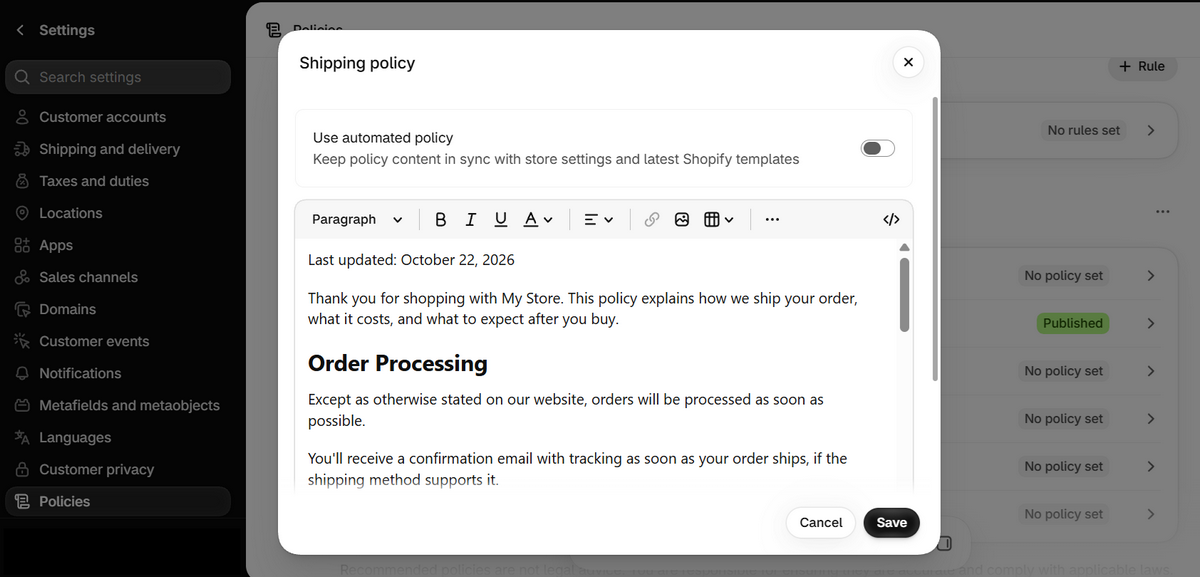
Those expectations should also live somewhere customers can reference them later. Under Settings → Policies, create or update the Shipping policy with the regions served, processing and delivery windows, shipping costs, tracking expectations, and any international delays worth flagging. Shopify can link published policies at checkout and elsewhere across the storefront.
🆕 Beginner’s Tip: Need help putting that policy together? Check our dropshipping shipping policy guide for the key elements to include and how to structure them clearly.
How To Automate Shopify Dropshipping Order Fulfillment
By this point, Shopify knows what to charge and what delivery promise to show. The next challenge happens behind the checkout: keeping the supplier cost, order placement, and tracking aligned every time a sale comes in.
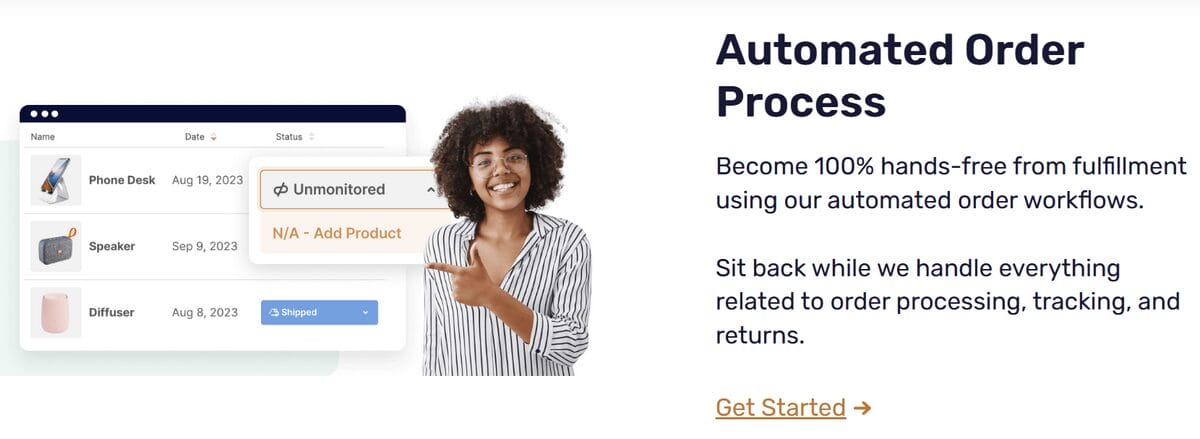
That’s where AutoDS can automate part of the fulfillment workflow. The supplier still stores, packs, and ships the product; the Shopify dropshipping platform connects the pricing and order data around that process. Three features are especially relevant here, each designed to:
Include the supplier shipping cost in your pricing
Let’s return to the $20 product with $6 supplier shipping. With AutoDS’ Include Shipping Price setting enabled, that shipping fee is added to the source cost before the pricing rule is applied. In other words, the pricing calculation works from $26 instead of $20, so the supplier’s delivery charge doesn’t quietly disappear from the margin math.
That pairs especially well with free shipping at checkout: the shipping expense can already be accounted for in the product price, while the customer still sees $0 delivery. AutoDS can also select a preferred supplier shipping method (such as the cheapest option or a tracked alternative) and factor that cost into pricing.
Just keep the two sides coordinated. If shipping is already built into the selling price and another full shipping charge is added at Shopify checkout, the same cost may effectively be recovered twice.
Automate order placement
Once an eligible Shopify order arrives, the Automatic Orders feature can place it through a connected supplier buyer account using the payment method linked to that account. In other words, the order is automated, but the buyer account and payment method remain yours.
For supported suppliers, Fulfilled by AutoDS offers another route: AutoDS uses its managed buyer accounts and fulfillment infrastructure to place eligible orders, while the supplier still packages and ships the product directly to the customer. This keeps personal supplier accounts out of the ordering flow.
Keep tracking in sync
Once the supplier ships, AutoDS can retrieve the tracking number and sync it back to Shopify for supported automation methods and selling channels, reducing the need to move shipment updates between platforms manually.

That completes the operational loop: Shopify controls what customers are charged and promised at checkout, while AutoDS carries the order through purchasing and tracking afterward. The smoother the supplier cost, checkout rate, pricing rule, and fulfillment method line up, the less manual correction is left once orders start moving.
Frequently Asked Questions
How do I set up shipping and delivery on Shopify for dropshipping?
To set up shipping and delivery on Shopify for dropshipping, click ‘Settings’ on your Shopify dashboard. Then, choose ‘Shipping and delivery’ on the left menu bar. From there, you can begin managing shipping rates, processing times, and more.
What is the best shipping rate for dropshipping on Shopify?
The best Shopify shipping rate for dropshipping depends on your supplier costs, margins, and target market. Flat rates work well when costs are predictable, while price- or weight-based rates make more sense when shipping varies across orders. Free shipping can also work if the cost is already covered in your product pricing.
Should I offer free shipping on my Shopify dropshipping store?
Yes, free shipping can work well for dropshipping if the supplier’s shipping cost is already built into your margins. Shopify lets you offer free shipping outright or above a minimum order value. Just make sure the cost is recovered through product pricing or higher order value instead of quietly reducing your profit.
How do I set up shipping zones in Shopify?
To set up shipping zones in Shopify, go to Settings → Shipping and delivery, open the relevant shipping profile, and click Add zone under Shipping zones. Name the zone, select the countries or regions it covers, click Done, then add the shipping options and rates you want to offer there.
How do I add my supplier’s shipping cost to my Shopify prices?
You can add a supplier’s shipping cost manually when setting product prices, or automate it with a tool like AutoDS. Its Include Shipping Price setting adds the supplier shipping fee to the source cost before your pricing rule calculates the selling price, helping keep that expense inside your margin math.
How do I set different shipping rates for different products in Shopify?
To set different shipping rates for different products, create a custom shipping profile and assign the relevant products or variants to it. You can then give that group its own fulfillment locations, shipping zones, and rates instead of using the General profile. Shopify currently allows up to 99 custom profiles.
How do I show delivery times on my Shopify store?
You can show delivery times on Shopify by adding transit times to eligible shipping rates and configuring your fulfillment time under Settings → Shipping and delivery → Estimated delivery dates. Shopify can then display manual or, for eligible stores, automated delivery estimates at checkout and other customer-facing touchpoints.
Do I need to buy shipping labels for dropshipping?
Usually, you don’t need to buy shipping labels yourself when dropshipping, because the supplier fulfills and ships the order directly to the customer. Shopify shipping labels are more relevant when you hold inventory or ship packages yourself; with dropshipping, your focus is usually on rates, delivery expectations, and tracking instead.
Set Up Shopify Dropshipping Shipping With Confidence!
A good shipping setup starts with intention. Once costs, destinations, and delivery expectations are mapped clearly, Shopify becomes much easier to configure around how orders will actually reach the customer.
From there, the picture gets sharper. A rate that looked right on paper may need tweaking, while an expanding catalog can call for more specific rules. That’s part of the process: real orders reveal where the fulfillment strategy needs to evolve.
And when the repetitive work starts taking over, automation becomes your best friend. Tools like AutoDS can keep supplier shipping accounted for in pricing while eligible orders move through fulfillment and tracking updates flow back to Shopify along the way.
Get that loop running smoothly, and every order has a much clearer road from checkout to doorstep.
🚚 Ready to put it into motion? Try AutoDS for $1 to build a fulfillment workflow that scales with your business.
That said, shipping is only one piece of Shopify dropshipping. These guides can help you tackle what comes next: