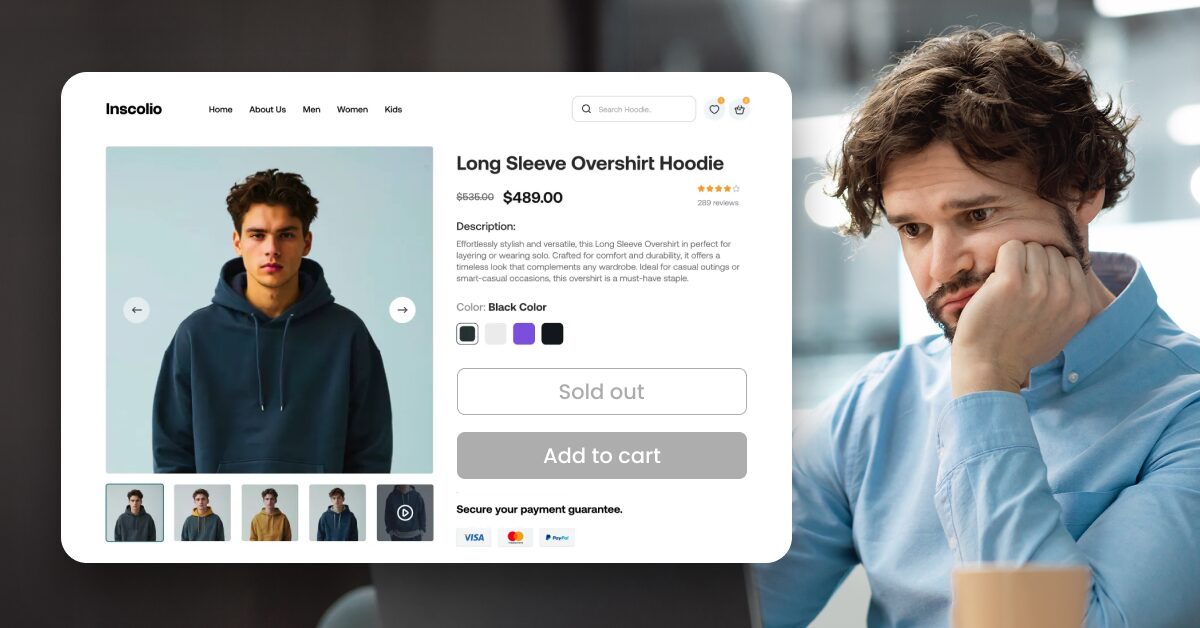
Your supplier has stock, your product page is ready, and Shopify says “Sold Out.” Not exactly the launch you had in mind. But “sold out” doesn’t always mean unavailable: inventory settings, variant quantities, or a supplier sync issue can leave a product looking impossible to buy.
If you’re wondering why your Shopify products are showing sold out, I’d start with six checks: inventory tracking, available quantity, your out-of-stock selling setting, variant stock, sales channel availability, and app or supplier syncing. Below, I’ll walk you through what to check and how to fix each issue, so you can get back to selling without randomly toggling settings and hoping for the best.
Start with six checks: inventory tracking, zero quantity, out-of-stock selling settings, variant stock, sales channel availability, and supplier sync.
Check the exact variant and location. Stock elsewhere doesn’t guarantee the selected option is available to your customer.
Use “Continue selling” deliberately. It allows purchases past zero inventory but doesn’t fix stock errors or guarantee fulfillment.
Verify sales channel publishing. A product excluded from the Online Store may be hidden, even with available inventory.
Keep supplier data connected. AutoDS stock monitoring helps update availability, while genuine supplier shortages should still trigger an out-of-stock status.
Why Shopify Products Show ‘Sold Out’: Check These 6 Things
A “Sold Out” label can reflect a genuine stock shortage or a setting that needs attention. Start with these six checks, and test the affected product variant after saving your changes. If the problem only affects customers in certain countries, also pay attention to inventory locations and shipping coverage.
1. Inventory tracking is turned on
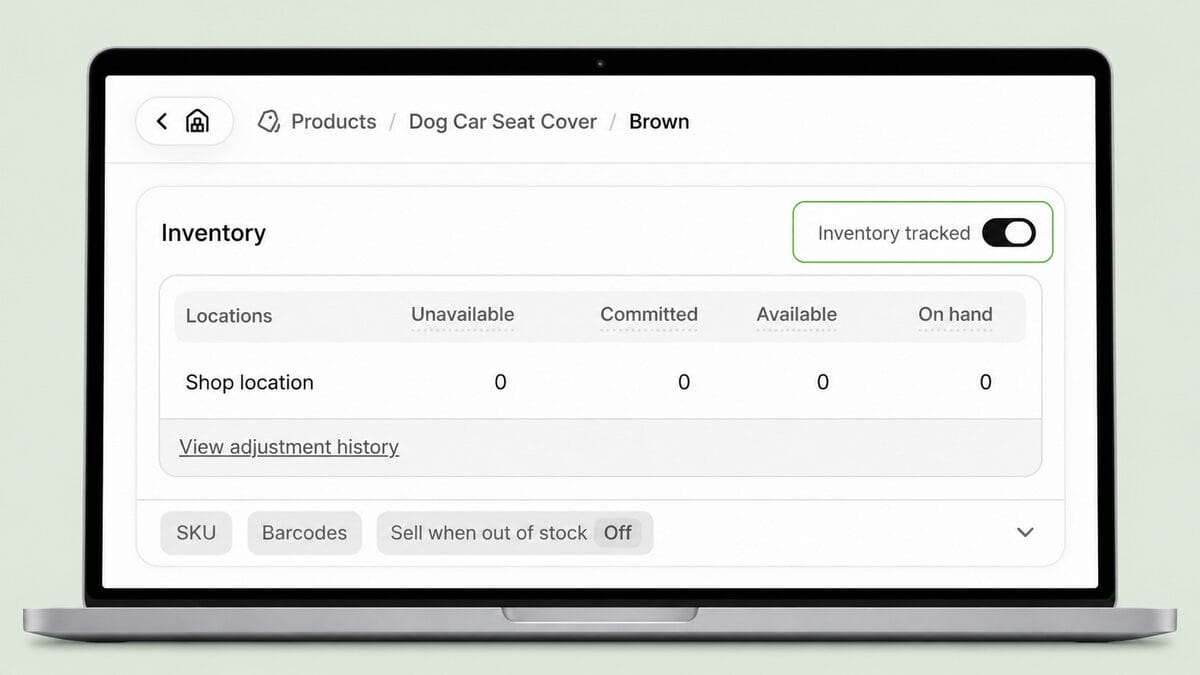
Shopify’s inventory tracking tells your store to use recorded quantities when determining availability. Tracking itself isn’t the problem: when the selected variant has no available inventory and selling past zero is disabled, Shopify can mark it as sold out, even if your supplier still has stock.
You might recognize this setting as “Track quantity.” Shopify’s current desktop documentation describes an inventory tracking control within the Inventory section, while its mobile instructions still use “Track quantity.”
How to check and fix it:
- In your Shopify admin, go to Products and open the affected product.
- If it has variants, select the specific size, color, or option showing as sold out.
- Find the Inventory section and check whether inventory tracking is enabled.
- If you manage a limited stock quantity, keep tracking enabled and correct any inaccurate Available quantity at the appropriate fulfillment location.
- If an app manages your inventory, check its stock data and connection before making a manual adjustment that the next sync could overwrite.
- Save any changes and check the selected variant on your storefront.
I wouldn’t turn tracking off just to make the label disappear. Disabling tracking removes a stock safeguard; it doesn’t confirm that your supplier can fulfill the next order. Only use untracked inventory when it deliberately matches how you sell and fulfill the product.
🆕 Beginner’s Tip: Your supplier’s available stock and your Shopify inventory are separate records. Seeing an item in stock on the supplier’s website doesn’t automatically update your store.
2. Quantity is set to zero
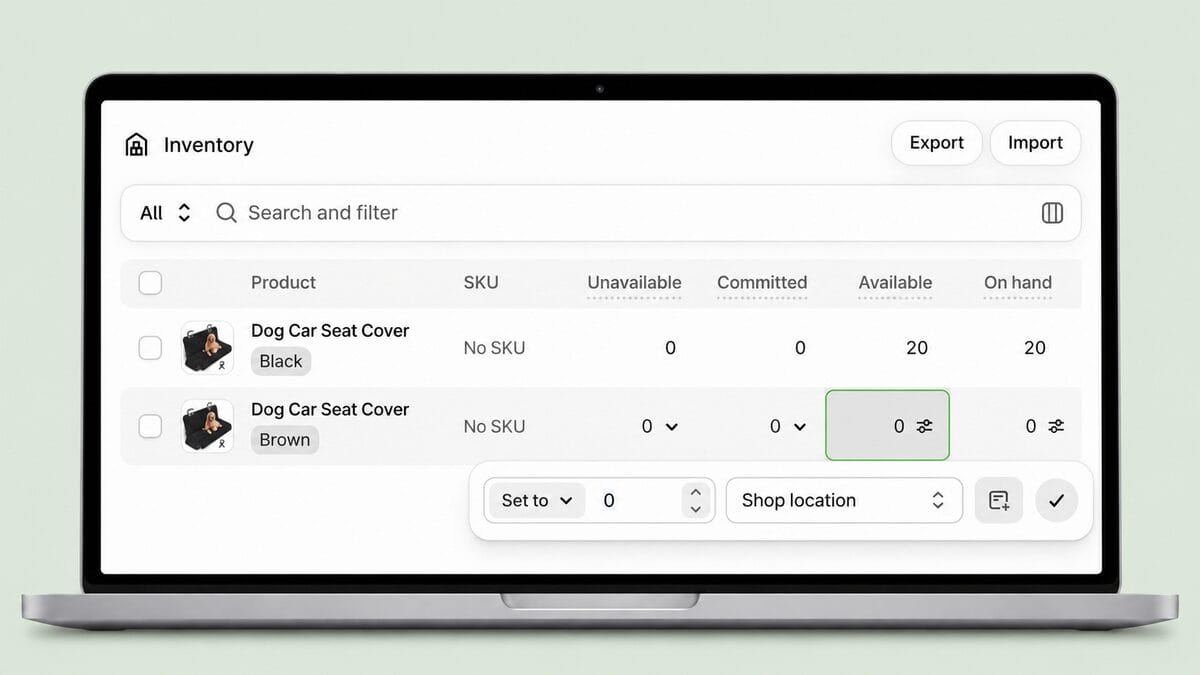
With inventory tracking enabled and overselling disabled, zero available units means no sales. This can happen after an import leaves quantities empty, a manual adjustment sets stock to zero, or existing orders reserve the last available units.
The number I’d check first is Available, not just On hand. Shopify’s “On hand” total includes units already committed to orders or set aside as unavailable. A positive total doesn’t necessarily mean you have inventory left to sell.
How to check and fix it:
- Go to Products → Inventory in your Shopify admin.
- Select the relevant inventory location and search for the affected product or variant.
- Check its Available quantity. If it shows zero, compare that with the stock you can actually fulfill.
- For manually managed inventory, click the editable quantity and use Set to to enter the verified available count. Don’t include units already reserved for orders or unavailable for sale.
- Save your changes and refresh the product page to test the affected variant.
If stock exists at another location, check where orders can be fulfilled before adding more units. Under Settings → Locations, review the location holding that stock and confirm it supports online fulfillment. It also needs to serve the customer’s shipping zone; inventory elsewhere won’t necessarily make the item purchasable.
For app-managed products, correct the source of the mismatch through your inventory app. Typing a positive number into Shopify might temporarily change availability, but the next supplier sync could replace it. And if the supplier really is out of stock, leave the quantity accurate rather than inventing inventory to bring back the “Add to cart” button.
3. “Continue selling when out of stock” is off
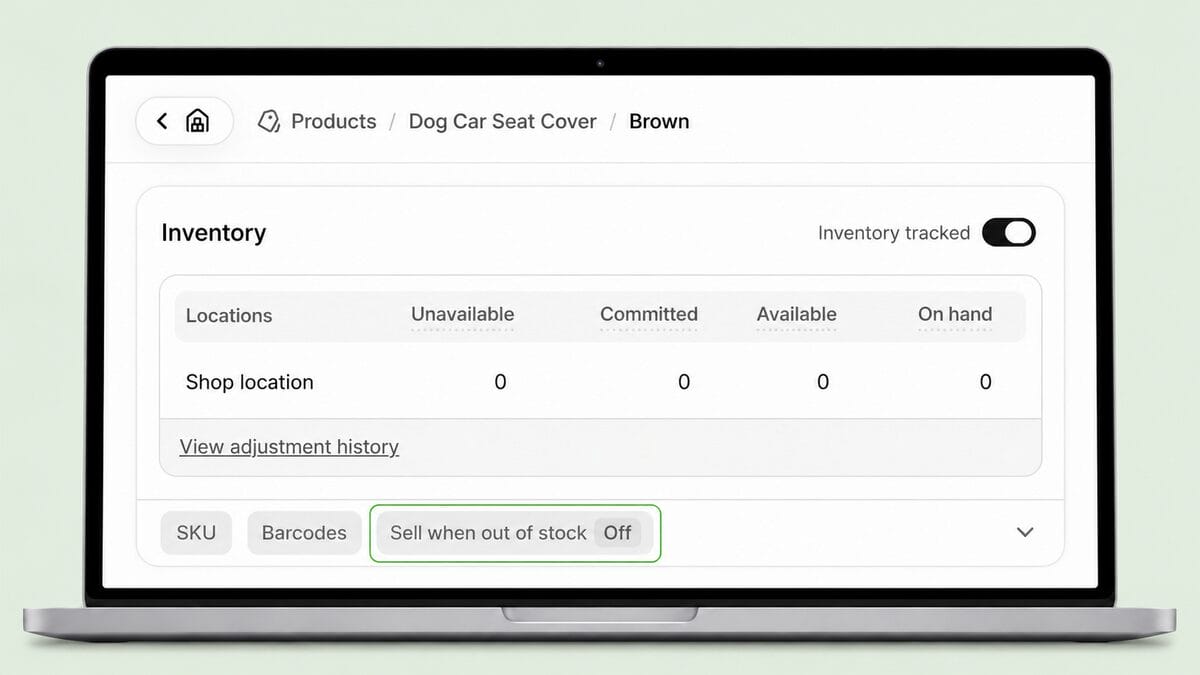
Shopify normally stops customers from buying a tracked item when its available inventory reaches zero. “Continue selling when out of stock” overrides that restriction, allowing purchases even at zero or negative inventory. It can support preorders or backorders, but it doesn’t replenish stock or confirm your supplier can fulfill an order.
How to check and fix it:
- Go to Products and open the affected product.
- If the product has variants, click the variant you want to check.
- In the Inventory section, make sure inventory tracking is enabled.
- Click Sell when out of stock, then select Continue selling when out of stock.
- Save your changes. Repeat for any other variants you intentionally want to sell past zero.
- Refresh the storefront and test the selected variant.
Only enable it with a fulfillment plan. For example, if your supplier has confirmed a restock and you’re accepting backorders, explain the expected dispatch timing before customers buy. If availability is uncertain, I’d keep the setting off and fix the inventory or supplier issue first.
💰 Financial Tip: An order you can’t fulfill can turn into a refund and extra support work. Treat selling past zero as a deliberate business decision, not a shortcut for removing the “Sold Out” label.
4. Variant-level stock is missing or zero
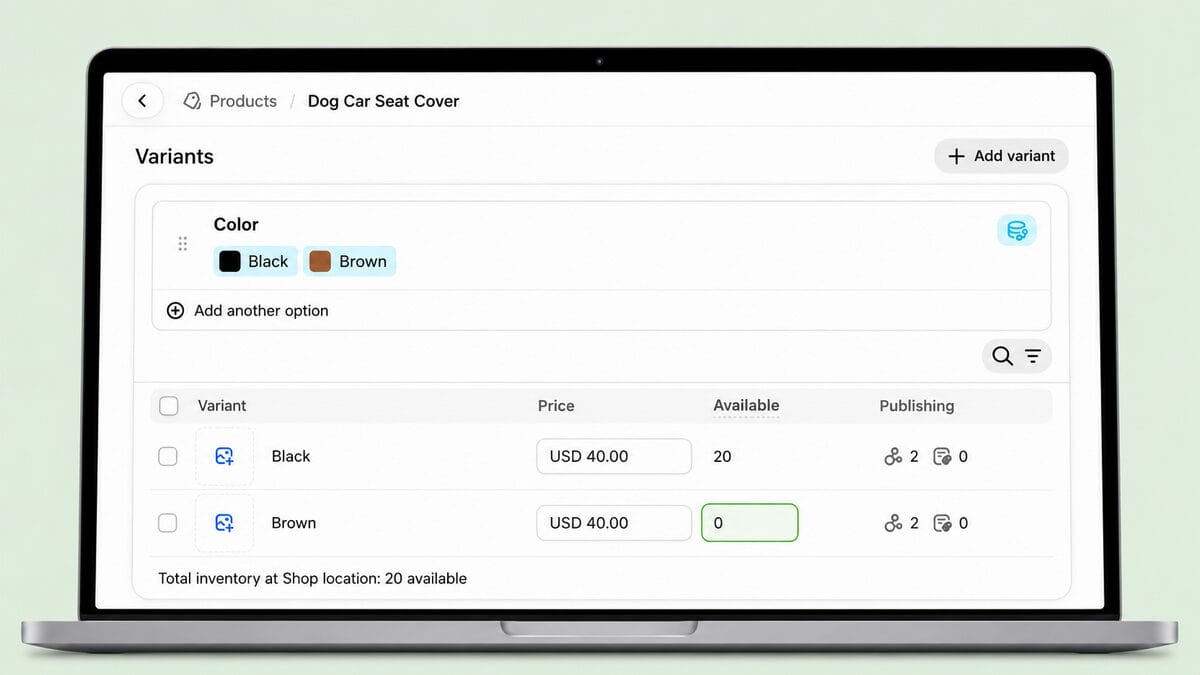
A product can have inventory overall while the exact option your customer selects is unavailable. Shopify tracks inventory separately for each variant, so stock in one size or color doesn’t make another available. Ten black hoodies won’t help someone trying to buy the sold-out blue one.
How to check and fix it:
- Go to Products and open the affected listing.
- In the Variants section, select the exact size, color, or combination showing as sold out.
- Review its inventory tracking setting and Available quantity at the relevant fulfillment location.
- If you manage inventory manually, correct the quantity using verified stock for that specific variant.
- If an app manages inventory, confirm that the Shopify variant is connected to the matching supplier option. A blue medium hoodie should pull availability from that exact item, not the supplier’s default selection.
- Save any changes, then select the same option on your storefront to check the result.
One unavailable variant doesn’t mean everything is sold out. Test the other options before changing the whole listing. If only one combination fails, focus on its quantity, fulfillment location, and supplier mapping.
I’d also check recently imported variants for missing or mismatched stock data. If the supplier has discontinued an option, keep it unavailable or remove that option from your offer rather than assigning stock from a different size or color.
5. The product isn’t available on the right sales channel
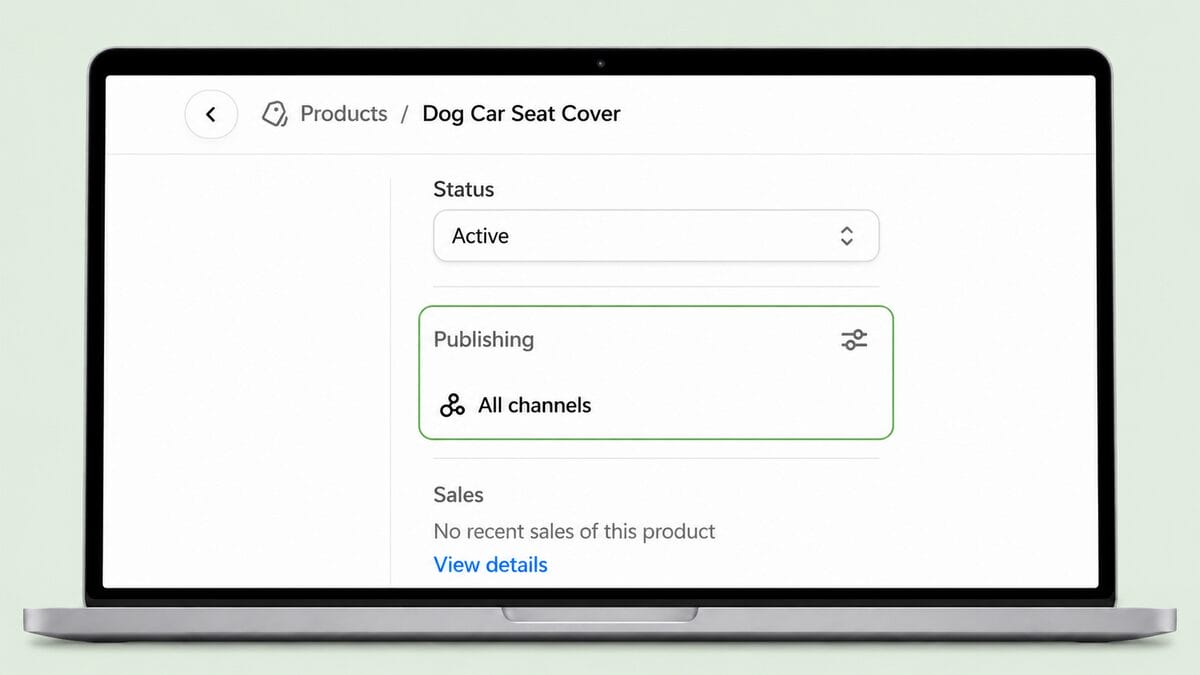
Correct inventory doesn’t automatically mean a product is available everywhere you sell. Sales channel availability controls where it’s published, such as your Online Store or Shopify POS. If a product is excluded from a channel, it can be hidden there rather than literally displaying “Sold Out,” so this check also helps when customers can’t find the listing.
How to check and fix it:
- Go to Products and open the affected product.
- Check its Status. If it’s a draft that’s ready to sell, change it to Active.
- Find the Publishing section and click the control for adjusting channel availability.
- Select the intended channel, such as Online Store.
- Click Done, then Save.
- Open the product through that channel to confirm customers can access it.
Publishing and inventory locations are separate settings. Publishing determines where you offer a product; inventory locations determine where its stock is held and fulfilled. Enabling the Online Store channel won’t correct stock assigned to a location that can’t fulfill online orders.
If the problem only affects shoppers in certain countries, check the relevant market, too. Confirm the product is included in the applicable market catalog and that a stocked fulfillment location serves the customer’s shipping zone. That helps explain why a listing might be purchasable for one visitor but unavailable for another.
6. App or supplier stock sync has failed
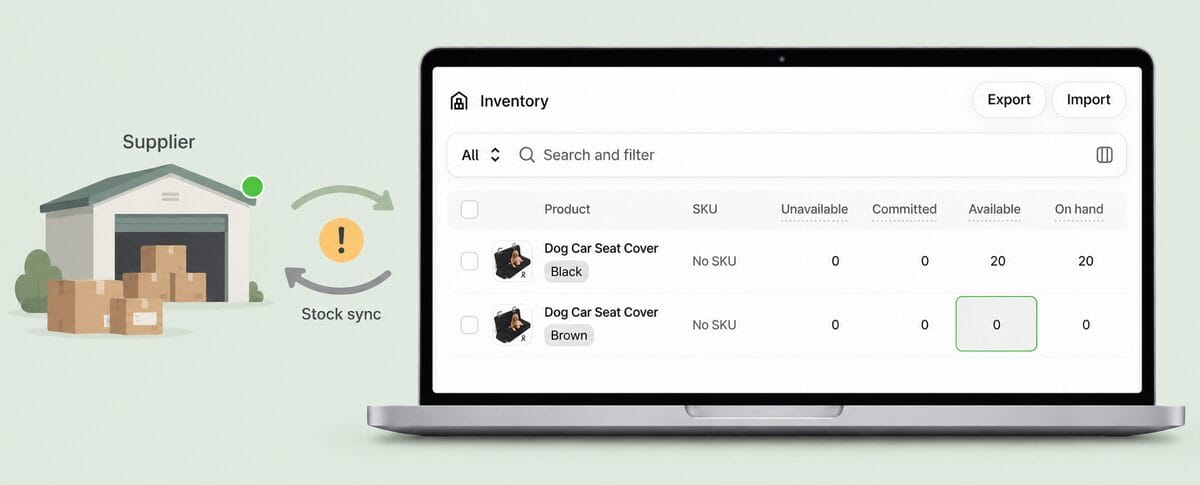
If your supplier has the correct variant in stock but Shopify still shows zero, check the connection between them. Disabled monitoring, a disconnected integration, or an incorrect supplier mapping can leave your store using outdated availability. Shopify doesn’t automatically read stock from a supplier’s website without an integration.
How to check and fix it:
- Open the original supplier listing. Confirm that the exact variant is available for your intended shipping destination.
- In Shopify, go to Apps and open the app managing that product’s inventory.
- Find the affected listing and check that it’s connected to the correct supplier product and variant.
- Confirm that stock monitoring is enabled. Review any connection errors and follow the app’s reconnection instructions if needed.
- Check the app’s stock rules, including minimum supplier quantity or shipping-time limits. A product can be intentionally marked unavailable when it falls outside those settings.
- After correcting the issue, allow the app’s inventory update to complete. Compare its stock status with Shopify’s Available quantity, then test the variant on your storefront.
AutoDS’ Shopify stock monitoring checks supported supplier listings and updates store availability according to your monitoring settings. This is where automation helps: keeping supplier changes reflected in Shopify, without manually checking every listing.
However, a sold-out status can also mean monitoring is working correctly. If the supplier runs out or falls below your configured minimum quantity, AutoDS can mark the item out of stock. Check the reason before overriding that protection.
📦 Supplier’s Tip: If a supplier removes or replaces a listing, verify the replacement’s variants, specifications, and shipping terms before reconnecting it. A similar photo doesn’t guarantee the same product.
How to Prevent Sold Out Issues With AutoDS
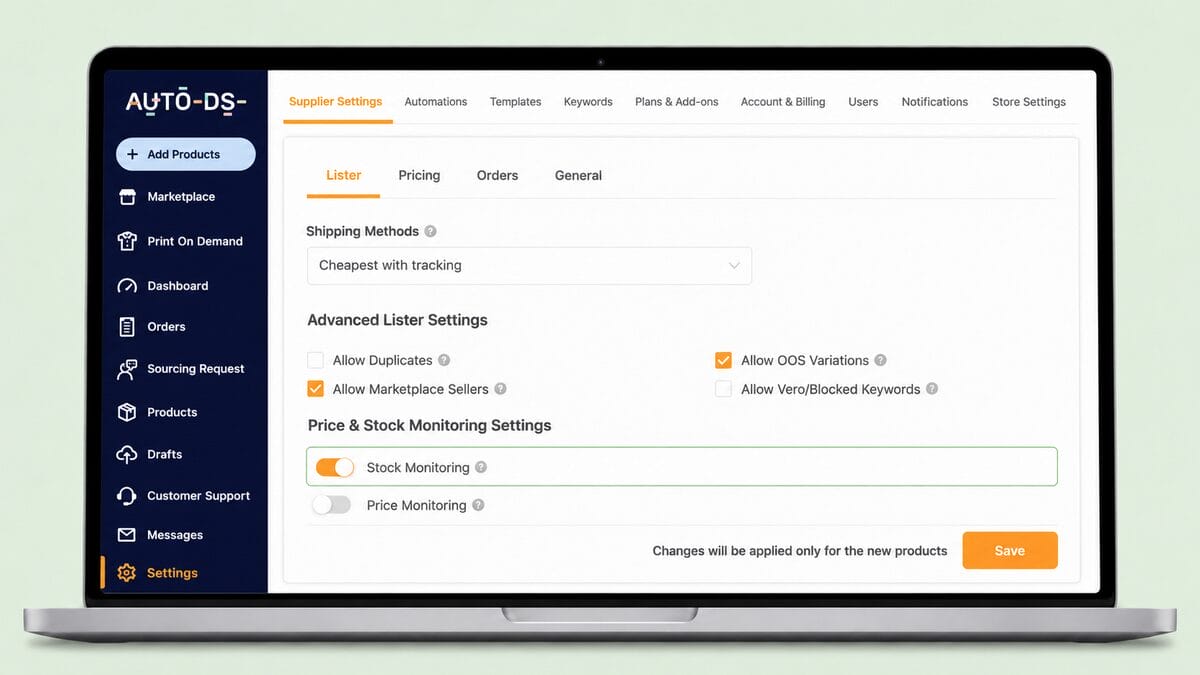
Once you’ve fixed the immediate issue, keep supplier stock changes from catching you off guard. AutoDS brings stock monitoring into its all-in-one Shopify dropshipping platform, helping you maintain availability across connected Shopify listings without checking every supplier page manually.
I’d focus on a few habits to keep that setup useful:
- Keep stock monitoring enabled. Review newly imported products and any listings where you previously paused monitoring.
- Set stock rules deliberately. Your minimum supplier quantity and maximum shipping-time settings can affect whether products stay available. Choose limits that match what you can reliably offer customers.
- Review supplier changes. If a supplier replaces a listing or changes its options, check the affected product’s source and variant mapping.
- Investigate recurring mismatches. If a quantity keeps returning to zero after you edit it, check the app’s data and rules before making another manual adjustment.
- Test after store changes. Revisit an affected product after changing fulfillment locations, shipping coverage, or publishing settings. Stock monitoring doesn’t configure those Shopify settings for you.
The goal is accurate availability, not permanently available listings. Sometimes “Sold Out” is the right message. A dependable setup keeps genuinely available products purchasable and helps you avoid accepting orders your supplier can’t fulfill.
Frequently Asked Questions
Why does Shopify show my product as sold out when it’s still available?
The selected variant may have zero available inventory in Shopify, even if your supplier has stock. Other causes include inventory assigned to a location that can’t fulfill the customer’s order or an app that hasn’t updated availability. Check the exact variant, its fulfillment location, and the supplier connection first.
Why does Shopify show “0 available” even when I added inventory?
You may have added inventory to a different variant or location. Units can also be committed to existing orders or set aside as unavailable, so a positive “On hand” total doesn’t guarantee sellable stock. Check the “Available” quantity for the affected variant at the location fulfilling your online orders.
Why do products show as sold out after importing them to Shopify?
An import can leave a product with zero inventory, incomplete variant mapping, or stock assigned to an unsuitable fulfillment location. Your inventory app might also still be processing the supplier data. Review the imported variant’s quantity, location, and monitoring settings before changing its availability manually.
Why does Shopify show some variants as sold out but not others?
Shopify manages inventory separately for each variant. A particular size or color can sell out while other options remain available. Check the affected combination’s available quantity and, if you use a supplier integration, confirm it’s connected to the matching supplier variant.
How can I fix a Shopify product that incorrectly shows as sold out?
Check inventory tracking, available quantity, the “Continue selling when out of stock” setting, variant stock, sales channel publishing, and supplier synchronization. Correct the setting or data causing the mismatch, save your changes, and test the affected variant on your storefront. If the issue depends on the customer’s country, also review market availability and shipping coverage.
How often does Shopify update inventory from suppliers?
There isn’t one universal update interval. Supplier stock updates depend on the connected app or integration, its monitoring process, and whether the product is correctly linked. Without an integration, Shopify doesn’t automatically detect changes on an external supplier’s website.
Can automation tools prevent Shopify products from showing sold out?
Automation can reduce availability mismatches caused by outdated supplier data. AutoDS monitors supported supplier listings and updates connected Shopify products according to your settings. It won’t resolve every publishing, market, or fulfillment configuration issue, and it should still mark products unavailable when supplier conditions require it.
What does “Continue selling when out of stock” do in Shopify?
It allows customers to keep purchasing a tracked product or variant after its inventory reaches zero, potentially taking the quantity negative. This can support preorders or backorders when you have a reliable fulfillment plan. It doesn’t replenish inventory or fix supplier synchronization, and the setting doesn’t apply to Shopify POS.
Conclusion
When Shopify products show “Sold Out,” find the cause before changing settings. Work through the six checks, correct the affected product or variant, and test it on your storefront. I’d take a few minutes of targeted troubleshooting over a “toggle everything and hope” approach any day.
If supplier stock changes keep causing mismatches, AutoDS can help you reduce manual inventory checks through stock monitoring. You can start your AutoDS trial for $1 to connect your Shopify store and configure monitoring around your supplier and fulfillment needs.
Ready to give the rest of your setup a little attention? These guides are a good next stop: