


Facebook Marketplace puts your products in front of over 1 billion monthly buyers—40% out of all Facebook users (Capital One Shopping, 2026)—a reach that most selling channels can’t match.
But if you’ve tried listing through a business page, you’ve probably run into a little surprise: while personal profiles can post directly, business pages can’t. No worries: businesses can totally use Facebook Marketplace; they just have to post through the Commerce Manager.
In this guide, I’ll walk you through exactly how to post on Facebook Marketplace as a business, the right way. I’ll cover everything you need to know, from setting up your shop in Commerce Manager to getting your first products live with automation.
For instance, AutoDS automates product imports, price monitoring, and fulfillment, so you spend less time managing listings and more time growing your store (I’ll get to this as well).
Business pages sell on Facebook Marketplace through a Commerce Manager shop — not through the standard personal listing flow.
Listing products is free, but shipped orders carry a 10% selling fee with a $0.80 minimum.
Optimized photos, titles, and descriptions directly affect how often your products appear in Marketplace search results.
40% of Facebook’s 3.07 billion users actively shop on Marketplace. That equals 1.2 billion active buyers.
AutoDS automates product imports, pricing updates, and order fulfillment, reducing the manual work that slows most sellers down.
How To Post On Facebook Marketplace As A Business (Step-By-Step)
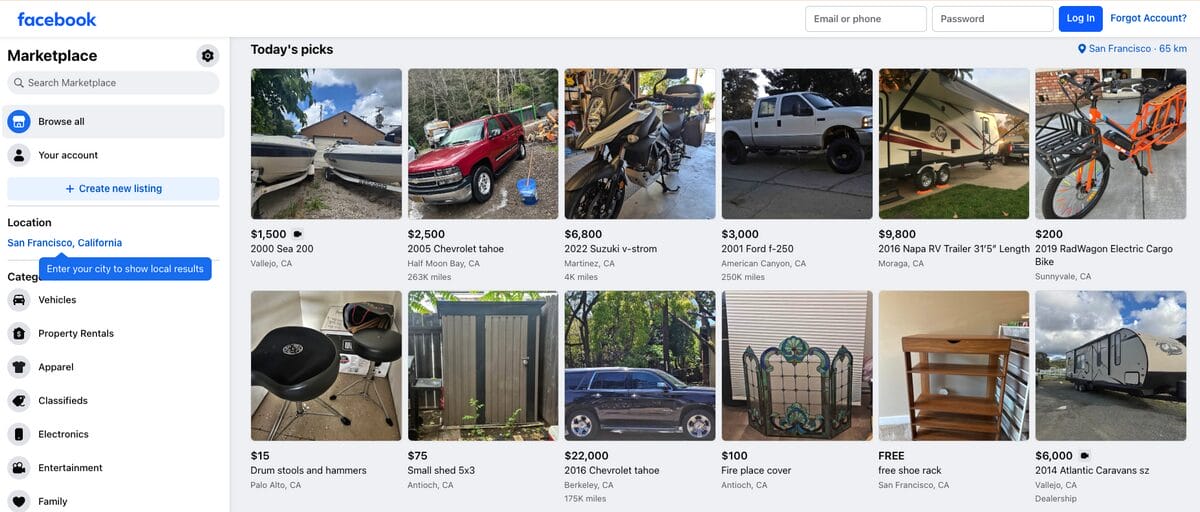
Dropshipping on Facebook Marketplace with a business page is totally possible, but it adds a couple of extra setup steps compared to posting from a personal account.
You just have to set up a Commerce Manager shop and connect it to the Marketplace as a sales channel. Next, I’ll cover everything from page creation to your first live listing.
Step 1 – Sign Up For AutoDS
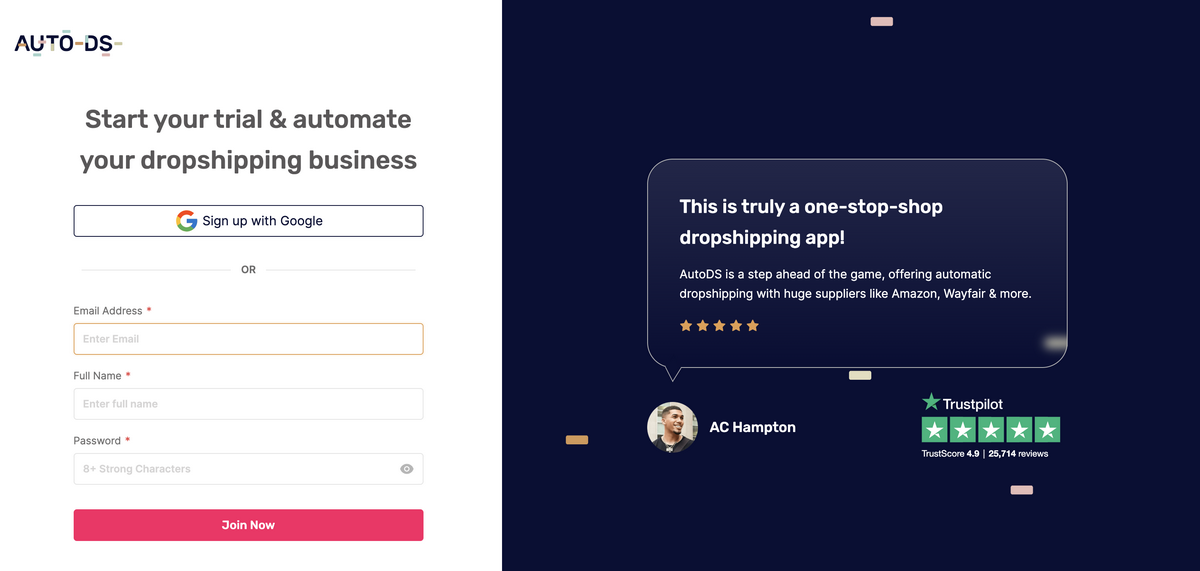
Before jumping into Commerce Manager, it’s best to set up your backend first. This is where AutoDS comes in, an all-in-one dropshipping platform.
AutoDS integrates with Marketplace to handle every step of the dropshipping workflow with full automation, from importing products all the way to fulfillment and order tracking (in other words: it does the heavy lifting for you).
This way, instead of adding items one by one manually, you can bulk import products from multiple suppliers, organize your catalog in one dashboard, and optimize listings in minutes.
So, why do this now? Simple: Signing up for AutoDS as the first step lets you add automation to everything that comes afterward, making the entire process quicker and simpler.
The best part? You can get started right away through the AutoDS $1 trial.
Step 2 – Set Up Your Facebook Business Page
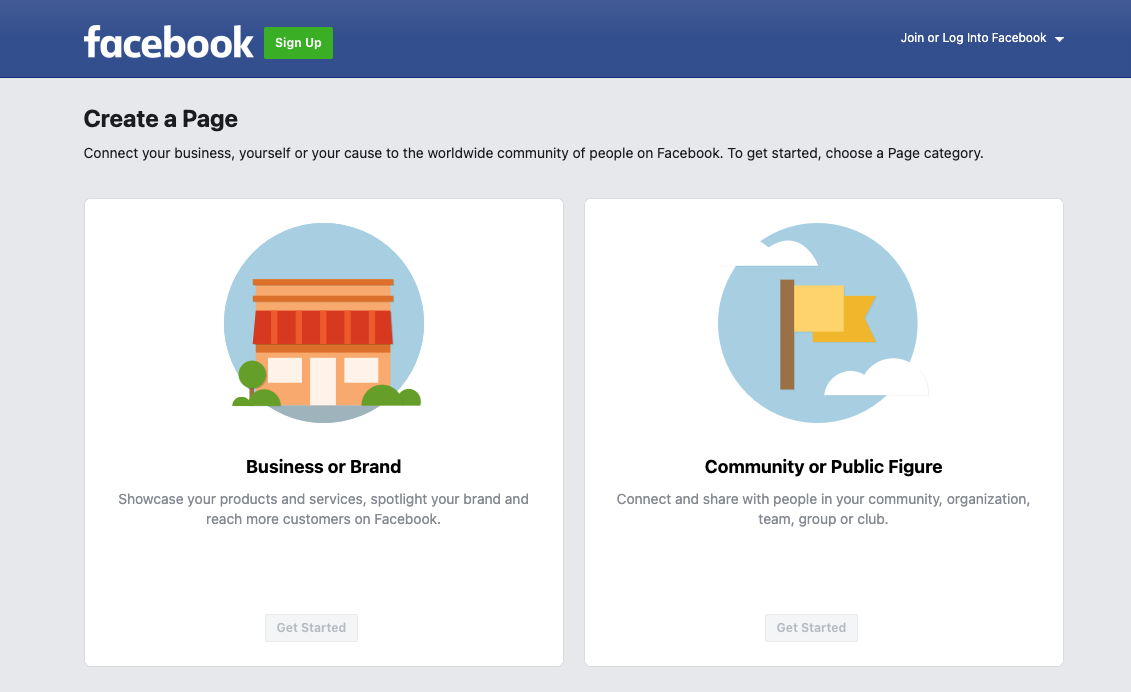
Next, let’s go straight to Facebook. The first step is setting up your Facebook Business Page. This is the foundation for everything that follows inside the Meta ecosystem.
If you already have one, skip ahead. If not…
- Go to facebook.com/pages/create
- Select “Business or Brand.”
- Add the basics: your business name, category, profile photo, and cover image.
- Fill in your contact details and a clear “About” description. Buyers often check this before making a purchase.
All in all, a complete, professional-looking page is the first step to selling on Facebook Marketplace. It makes you look legit and builds trust before a customer even sees your products.
Step 3 – Open Commerce Manager & Create A Shop
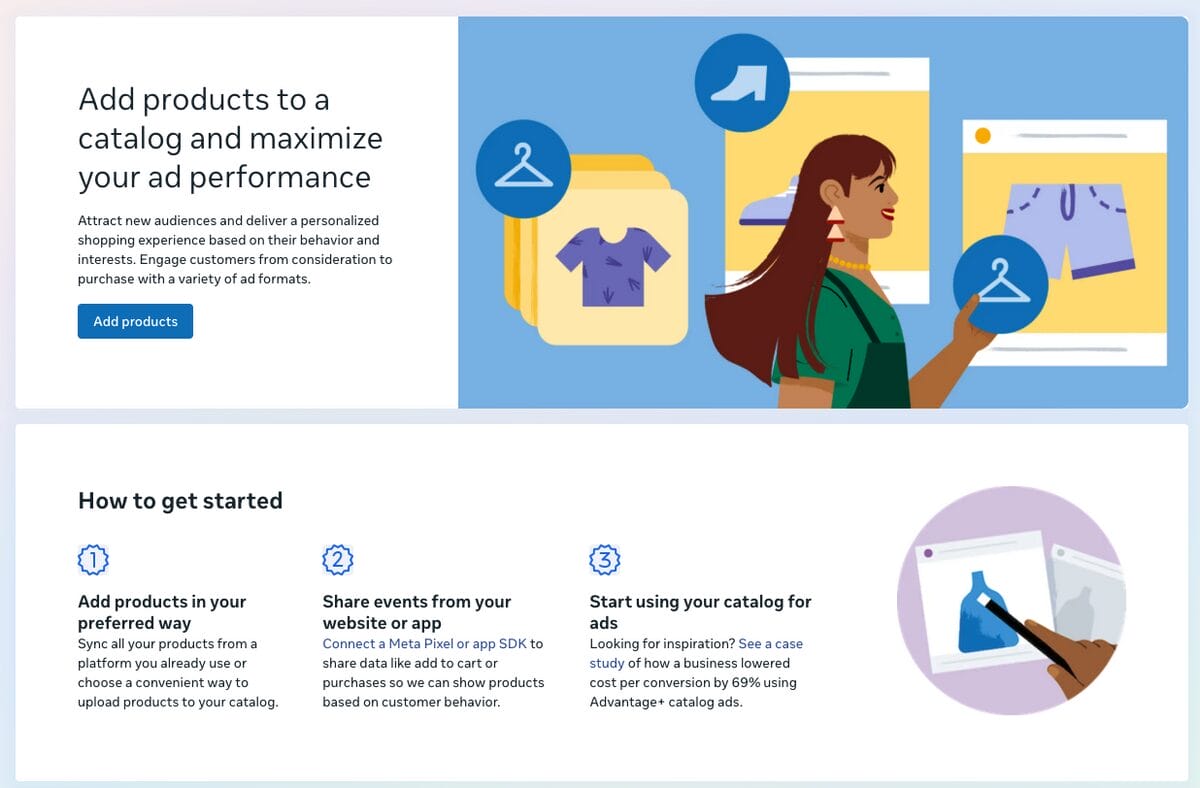
So far, you have your Business Page, but you’re not actually offering products yet. That’s where the Commerce Manager comes into play.
Commerce Manager is Facebook’s dedicated hub for businesses selling products across Facebook, Marketplace, and Instagram. I know: working your way around Facebook Business tools and features is not always straightforward. Been there, done that. But this one is actually not bad at all.
To access it, go to business.facebook.com and navigate to Commerce Manager in the left menu, or go directly to facebook.com/commerce_manager.
Click “Add products” and follow the setup wizard. You’ll be asked to:
- Choose your checkout method, such as Facebook Checkout, a third-party website, or direct messaging.
- Select the Facebook Page you want to associate with this shop.
- Set your shipping and return policies.
- Add your bank account details for payouts (if using Facebook Checkout).
Once your shop is created and reviewed by Meta, you’ll have access to new features to manage your product catalog and sales channel.
Finally, Facebook has to approve your new Shop, which typically takes one to two business days. A trick to make it quicker? Keep your policies clear and your business information accurate. Meta wants to ensure you’re a real business.
Step 4 – Enable Marketplace As A Sales Channel
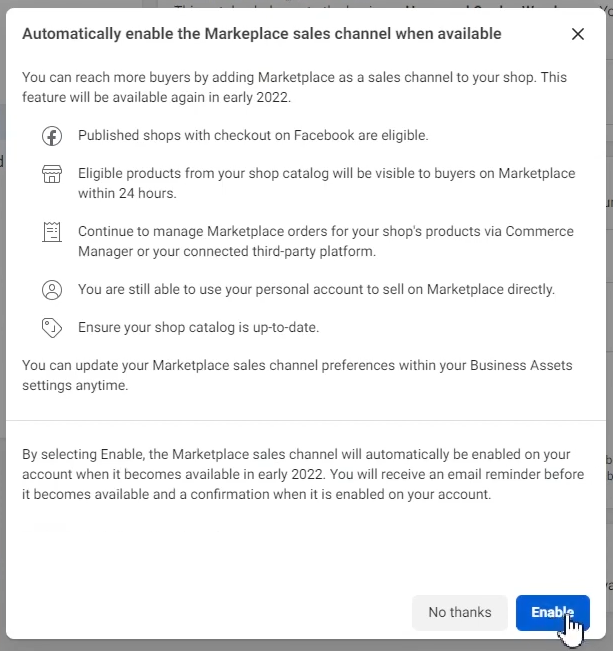
The next step is to enable Facebook Marketplace as an actual selling channel. This is super simple.
Inside Commerce Manager, navigate to “Settings”, then “Business Assets”, and then “Sales Channels.” You’ll see options to distribute your catalog across Facebook Shop, Instagram Shop, and Facebook Marketplace. Toggle Marketplace on.
Note that not all seller accounts have immediate access. Facebook rolls out Marketplace availability based on account age, policy compliance, and region. So, if the option isn’t visible yet, review the full requirements for dropshipping on Facebook Marketplace to double-check if you are eligible or if something is missing.
In most cases, Marketplace access becomes available after your account is in good standing and your shop is approved. And if your region doesn’t allow it yet, don’t worry: Meta will likely roll it out as availability expands.
Step 5 – Connect To AutoDS
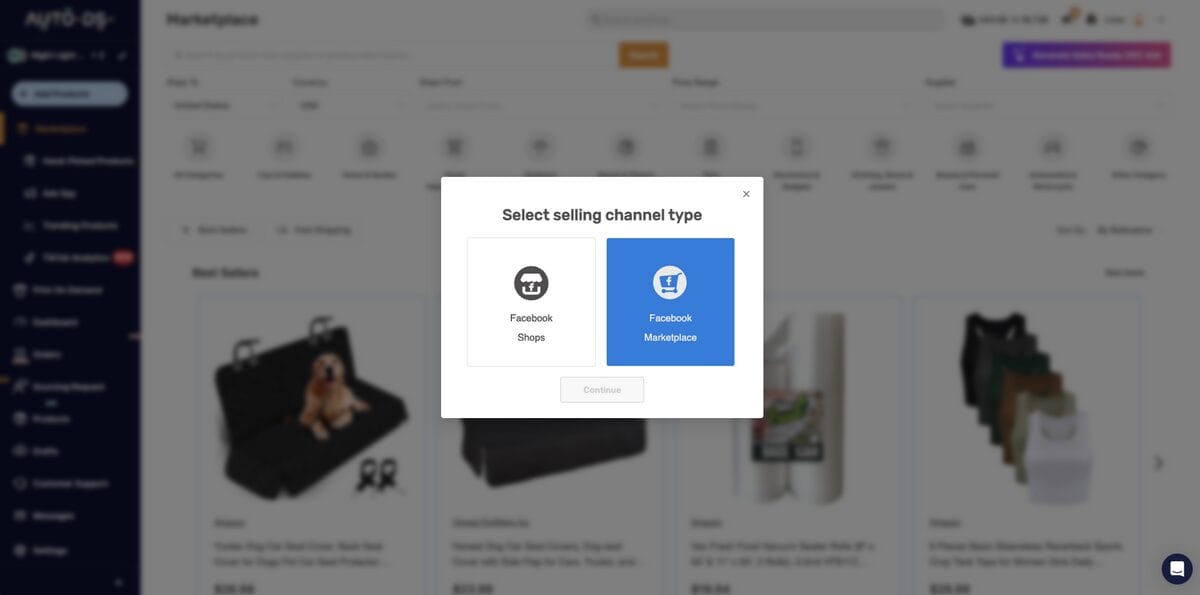
You have your AutoDS account and your Facebook Marketplace store + Facebook page. The next step? Connecting them.
On AutoDS, head to “Add Store”, click Facebook Store, select “Marketplace” or “Shops”, follow the prompts, and that’s it! The integration makes it super easy and quick to connect both platforms.
With this connection, you can automate each one of the following steps, from importing products to syncing supplier prices and inventory levels, automating fulfillment, tracking updates, and more.
Step 6 – Add Products To Your Catalog

Your product catalog is the heart of your Marketplace strategy. So, before you actually add items, make sure you find items that people are already searching for, priced competitively, and easy to ship without delays or issues.
🔍 Research Tip: To find the best-selling items on Facebook Marketplace, you can use marketplaces’ best sellers, Google Trends, or AutoDS’s built-in research tools, like the Hand-picked curation, the Trending tools hub, or the Ad Spy.
To start adding items to your store, you have a couple of options. If you’re using Commerce Manager, go to “Catalog” and click “Add Items.” You have three ways to add products:
- Manual entry — add products one at a time with photos, titles, descriptions, and pricing
- Data feed — upload a spreadsheet or connect a URL-based product feed for bulk imports
- Pixel or API connection — for advanced sellers with developer resources
In this case, make sure to include a clear title, at least four high-quality images, an accurate description, a price, and a product category for each product. While this alternative is fine, manually doing this can become time-consuming.
But if you’re using AutoDS, this is much faster and easier. With the automatic bulk importing feature, you can add multiple products (from 25+ supported suppliers) at once by copying and pasting each product’s URL. You can also do it by uploading a spreadsheet directly into the platform, if you prefer.
Once imported, AutoDS connects directly to your product sources and automatically pushes items into your Facebook catalog. It includes everything: product images, titles, descriptions, and pricing. This way, instead of entering product details one by one, you can import hundreds of products in minutes.
Step 7 – Optimize Your Listings For Marketplace
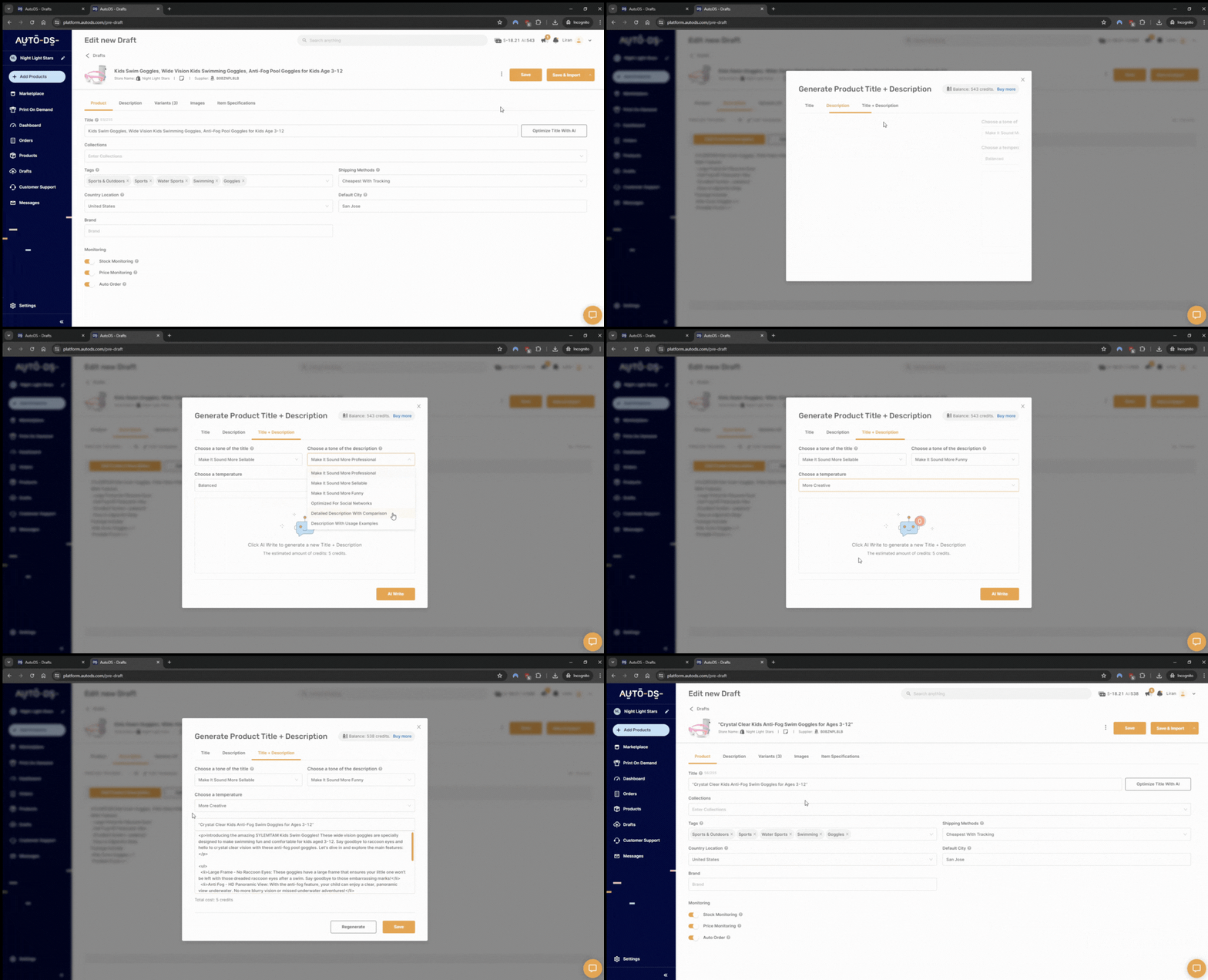
Optimized listings rank higher in Marketplace search and convert more casual browsers into buyers. But… what does optimization mean, exactly? It comes down to getting the basics right to make your listings stand out, feed algorithms, and convince buyers to add to cart.
Here are some practices for every product you list:
- Titles: Lead with the most specific, searchable term. Think product type first, then key attributes like brand, size, or color. Keep them under 150 characters to make it fit across devices and screens. Also, avoid vague terms like “great deal” or “must see.”
- Photos: Use at least four images. This includes a clean front shot on a white or neutral background, lifestyle context, a close-up of key details, and any relevant size or scale reference. Marketplace is highly visual, so quality matters.
- Descriptions: Open with the core use case, then cover key specs, dimensions, condition, and any compatibility notes. 80% of Marketplace users visit specifically to find products to buy (SQ Magazine, 2025). This means they’re not browsing casually, so give them the information they need to make a quick decision.
- Pricing: Research what comparable items sell for on Marketplace before setting your price. Competitive pricing increases click-through rates. In your dropshipping pricing strategy, factor in the 10% selling fee on shipped orders so your margins stay intact.
- Category selection: Choose the most specific subcategory available. Broad categories create more competition. Instead, precise ones put your listing in front of more relevant buyers.
💡 Pro Tip: Want to avoid the hassle? AutoDS’s AI Product Title and Description Generator creates and optimizes copy for you automatically. This way, you don’t have to waste time (or creativity) on listings. No copywriting skills needed!
Step 7 – Publish & Monitor Your Listings
Once your catalog items are ready, publish them through Commerce Manager or AutoDS, and they’ll appear on Marketplace.
But before you sit back and relax, one more thing: after your listings go live, the job is not done yet. Now, it’s time to monitor performance regularly. This includes checking views, click-through rates, and messages to spot which products are gaining traction (and which ones are staying behind).
AutoDS handles ongoing price and stock monitoring automatically, so you’re not manually checking supplier pages to catch price increases or sold-out items.
When a supplier’s price drops, AutoDS can adjust your listing price to protect your margin. When stock runs out, it can mark the item as unavailable before a customer orders something you can’t fulfill. This keeps your listings up to date at all times without overselling or losing profits.



Can A Business Page Post On Facebook Marketplace?
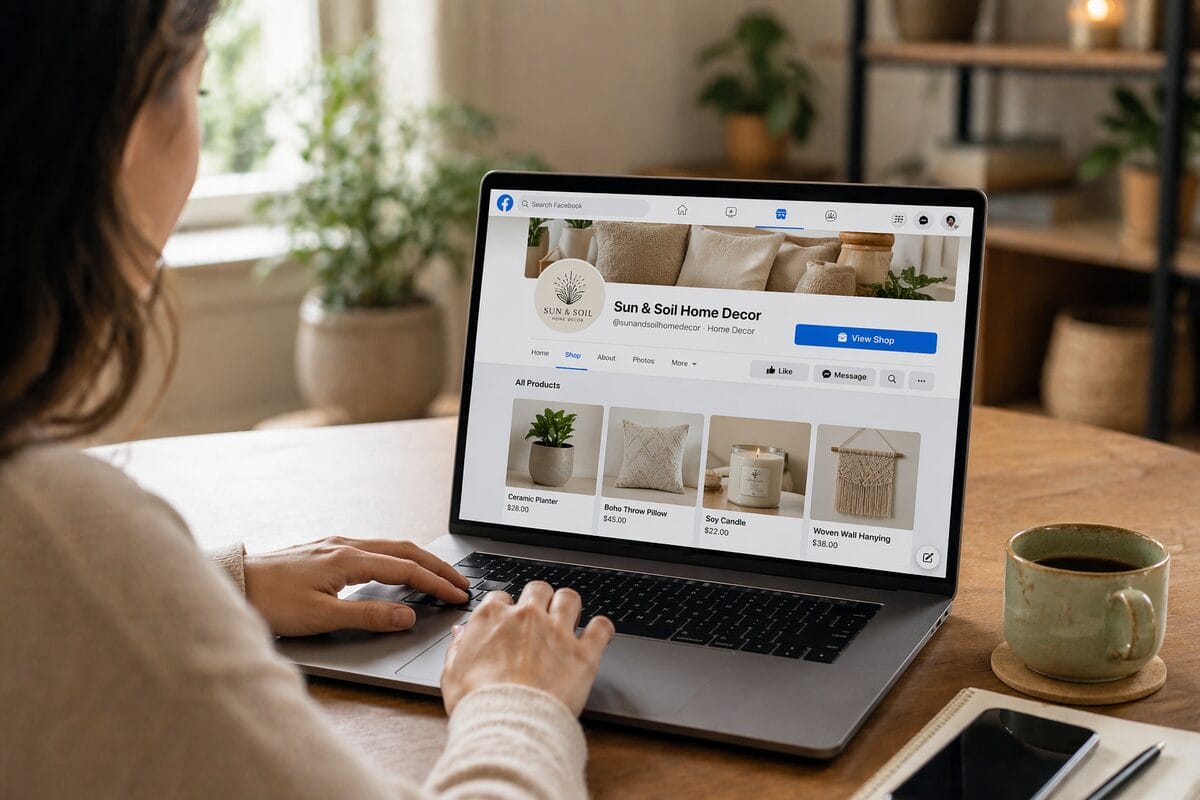
If you want to sell on Facebook Marketplace as a business, don’t worry: you can totally do it. That said, while a business page can post on Facebook Marketplace, the path is a bit different from that for personal accounts. And that tiny difference causes lots of confusion (and panic).
Personal profiles can access Marketplace directly from the Facebook menu and create listings in a few clicks. But here’s the thing: business pages cannot do this.
Instead, business sellers must go through Commerce Manager, set up a shop, and enable Marketplace as a sales channel within that shop. The listings then publish from your catalog, rather than from a manual single-item form.
It’s just a couple extra steps, but with a major perk: as a business, you get extra features that personal profiles don’t have. For example, bulk product management, catalog organization, detailed performance analytics, and the ability to run Facebook Shop and Marketplace from the same inventory system.
For anyone running a real business, especially dropshippers managing dozens or hundreds of SKUs, this is actually the better setup.
💡 Pro Tip: Either way (business or personal account), you must comply with Meta’s Commerce Policies. Selling prohibited items, violating intellectual property guidelines, or having a history of policy violations can result in your account being banned.
Facebook Marketplace Fees & Policies For Businesses
See? Selling on Facebook Marketplace is super simple. But… there are a couple of things to keep in mind.
First, understanding the fee structure before you start selling protects your margins and prevents surprises at payout time. Second, there are some rules you have to follow, especially around prohibited items. Don’t worry: next, I’ll cover both.
Facebook Marketplace Fee Structure
When it comes to Facebook Marketplace fees, here’s the great news: creating product listings on Facebook Marketplace is free (yay!). There is no charge to add items to your catalog or to publish them on Marketplace.
Now, here’s the so-not-great news: while listing is $0, there are selling fees, meaning you pay a commission for each order you get.
As a general rule of thumb, Facebook charges a 10% selling fee on shipped orders, with a minimum charge of $0.80 per order. This fee is automatically deducted from your payout. For example, on a $25 sale, Facebook keeps $2.50. On a $6 sale, the minimum $0.80 applies.
Then, purchases completed via local pickup (where the buyer collects the item in person and pays cash) don’t include a selling fee at all. So, if your business model supports local transactions, this can totally reduce your cost per sale.
All in all, the fee structure on Marketplace is straightforward. And for most product categories, a 10% selling fee is competitive with other major platforms. You’re only paying for what you actually sell (unlike other marketplaces, where you pay per listing and per sale). This makes it a super beginner-friendly selling channel.
Facebook Marketplace Rules & Policies
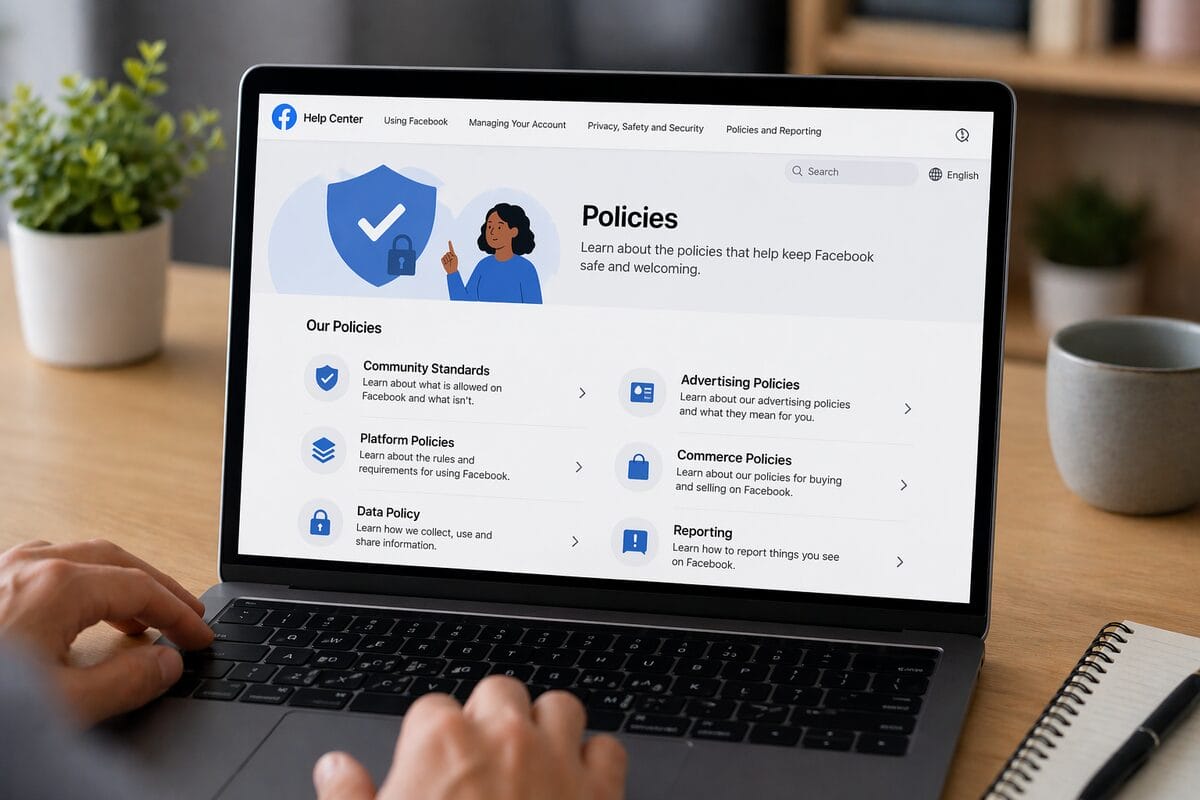
Another thing you should know, besides fees, is Facebook’s Commerce Policies. First of all, these include a list of prohibited items that you cannot sell across different categories and product types, such as:
- Weapons, firearms, and ammunition
- Illegal drugs and drug paraphernalia
- Adult products or services
- Counterfeit or infringing goods
- Recalled products
- Animals and wildlife products
- Hazardous materials
Violations can result in listing removal, shop suspension, or permanent account restrictions. To avoid this, you should always review Meta’s Commerce Policies in full before building your catalog (they might also be updated from time to time).
📦 Supplier’s Tip: Most importantly, make sure you work with reliable Facebook Marketplace dropshipping suppliers who comply with the platform’s commerce guidelines, provide high-quality products, and deliver packages as promised.
Another major policy is about transparency. Sellers must accurately represent products in listings. Misrepresentation, inflated “original prices,” and deceptive descriptions all violate Meta’s standards. This is why it’s important to read suppliers’ descriptions and ensure accuracy before listing them on your store.
Tips For Optimizing Your Facebook Marketplace Business Listings
When selling online, it’s not just about getting your products in front of buyers. It’s about getting them to click, trust what they see, and actually make a purchase. The difference between the first one and the second one is simple: it’s all about optimization.
Small tweaks to your listings can make a big difference in how often they appear in search results and how convincing they feel to customers. So, how to keep your store optimized and your listings high-converting? Here are some smart tips:
- Renew listings every seven days. Marketplace surfaces recently updated listings more prominently in search results. Renewing a listing bumps it higher without changing anything else. Set a reminder to refresh your top-performing products weekly.
- Respond to messages within one hour. Facebook tracks response time and displays it on your page. Fast response rates increase buyer confidence and directly affect how often Facebook surfaces your listings to new shoppers. If you can’t monitor messages constantly, set up auto-replies with key information (like availability, pricing, shipping timelines) to bridge the gap.
- Use Facebook Ads to amplify your best listings. 54.2% of users who tap ads make a purchase (Capital One Shopping, 2026). Running paid promotion on your top Marketplace listings puts them in front of new potential buyers. Start with a small daily budget (around $5 to $10) to test which products perform well before scaling spend.
- Cross-promote in relevant Facebook Groups. Many local buy-and-sell groups and niche product communities allow business posts. Sharing your Marketplace links in groups your target buyers already use drives additional traffic organically.
- Track performance by category. Both Commerce Manager and AutoDS provide insights into product performance. Use this data to double down on what’s working and cut listings that aren’t converting.
- Offer free shipping where margins allow. Free shipping increases conversion rates on shipped orders. If your product pricing and supplier costs support it, absorbing the shipping cost often pays off in higher sales volume.
- Keep your business page active. Regular posts keep your page visible in the Facebook algorithm. You can post product highlights, customer photos, relevant news, and reviews to increase customer trust.
- Monitor pricing automatically. Supplier prices can shift without warning, and an outdated price on a Marketplace listing can wipe out your margin or push buyers toward competitors. AutoDS price monitoring tracks supplier prices in real time and can automatically adjust your listing prices to protect your profit margin.
Frequently Asked Questions
Can I Post On Facebook Marketplace As A Business For Free?
Yes, listing products on Facebook Marketplace through your business page is free. The only fee that applies is a 10% selling fee on shipped orders (minimum $0.80), which Facebook deducts at payout when you actually sell the product.
Can You Sell On Facebook Marketplace From A Business Page?
Yes, you can sell on Facebook Marketplace from a business page. Business pages must use Commerce Manager to set up a shop and enable Marketplace as a sales channel. You cannot list directly from a business page the way you can from a personal profile, but AutoDS can help you post directly on Marketplace thanks to its direct integration with Facebook.
Is Dropshipping Allowed On Facebook Marketplace?
Yes, dropshipping is allowed on Facebook Marketplace as long as your listings comply with Meta’s Commerce Policies. This means products must be accurately described, legally sellable, and not from prohibited categories.
What Items Are Prohibited On Facebook Marketplace?
Facebook prohibits weapons, drugs, adult content, counterfeit goods, recalled products, animals, hazardous materials, and several other categories. Review Meta’s Commerce Policies in full before publishing your catalog, especially when bulk-importing products.
How Long Does It Take For A Marketplace Listing To Be Approved?
To be approved, most Marketplace listings are reviewed within a few hours, though some may take up to 24 hours depending on product category and account history. To avoid delays or rejections, make sure you include all your business information and that your listings meet all Commerce Policy requirements.
Start Dropshipping On Marketplace With AutoDS
Selling on Facebook Marketplace as a business comes down to three things: setting up Commerce Manager correctly, keeping your catalog optimized, and managing listings consistently over time. The steps in this guide give you the framework to do all three, but doing it manually can take (lots) of time and cause mistakes.
AutoDS ties it together with full automation. From bulk-importing products into your Commerce Manager catalog to monitoring supplier prices and automating order fulfillment, AutoDS integrates with Facebook to handle the backend work.
That means you can focus on finding winning products and growing your presence on Marketplace, rather than spending your time updating spreadsheets as a full-time job. Start your $1 trial with AutoDS and try it out for yourself to see how it fits your workflows.
In the meantime, here are a few other reads you might find helpful: